Managing IP in Your Project
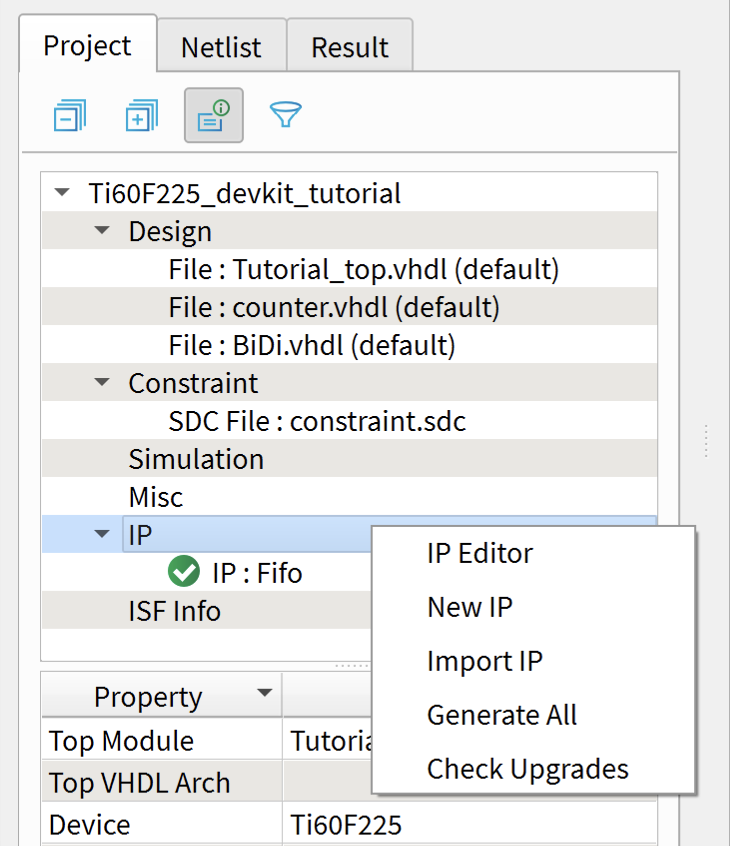
You can manage your project's IP in the Project pane under the Dashboard. When you
right-click the IP folder, the software shows a context-sensitive menu with these
options:
- IP Editor—Launches the IP Editor window, which shows the IP instances in your project. You can use this window to add additional IP to your project or to import IP. You import IP using a settings.json file, see IP Settings File for details.
- New IP—Launches the IP Catalog.
- Import IP—Import an existing IP core using a settings file.
- Check Upgrades—Checks the Efinity®
directory structure to see if there are any updates to the IP (for example, from
a software patch). The Efinity® software checks for available
upgrades by default. You can change this setting in the Preferences window. See
Setting General Tool Preferences.
Icon Meaning 
The IP core is up to date. 
There is an optional update to the IP core. Efinix recommends that you launch the IP Configuration wizard for the core to make any changes and then re-generate the deliverables. 
There is a required update to the IP core. You must launch the IP Configuration wizard for the core to make any changes and then re-generate the deliverables.
Importing IP
To make it easier for you to re-use IP, you can import a configured IP core. Import the IP by:
- Right-clicking the IP folder in the Project tab and choosing Import IP or clicking the Import an IP button in the IP Editor.
- Browse for the settings.json file of an existing IP core you want to import.
- The IP Manager launches the IP Configuration window.
- Enter a name in the Module Name box.
- (Optional) Change any of the IP settings (for example, you might not want to generate the example designs).
- Click Generate.
The software generates the imported IP core and adds it to your project.
Managing an IP Core
When you right click the IP core name under the IP folder, the software shows a
context-sensitive menu with these options:
- Open Folder—Opens the folder containing the IP deliverables.
- Configure—Launches the IP Configuration wizard. You can make any changes to the IP parameters and then re-generate it.
- Generate—Generates the IP deliverables.
- Remove—Remove the IP core and delete all deliverables from your project directory.
- Open Documentation—Launches the help for the IP core.