Setting General Tool Preferences
Before you create a project, set general tool preferences to control the operation of the software.
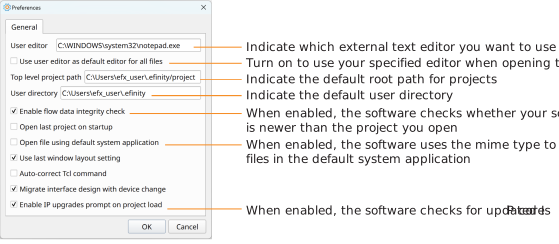
Note: The external text editor defaults to gedit in Linux and Notepad in Windows. The
Efinity software also has a built-in Code Editor, which is best used for viewing code
instead of as a full editor.
When you double-click a file in the
Project tab or Result tab, the
software opens the file in the Code Editor (default) or your specified editor (if
you turn on the Use user editor as default editor for all
files option).
Configuring External Text Editors
The Efinity software can launch an external text editor at a
specified line. To configure the Efinity software to jump to
specified lines in an external text editor, choose . In the Preferences dialog box, append an
option in dual braces (
{{<option>}}) to
the path in the User editor field. The option depends on your
external text editor:- gedit and GVim (Linux): /usr/bin/gedit {{+%n}}
- Notepad++ (Windows): C:\Program Files\Notepad++\notepad++.exe {{-n%n}}
- Visual Studio Code: /usr/bin/code {{--goto}} {{%f:%n}} or /usr/bin/code {{-g}} {{%f:%n}}
The supported options include:
- %n: Line number.
- %f: File name (Optional. Only required for Visual Studio
Code when using the
--gotooption).
To open a specified line in your external code editor:
- Open the Code Editor in the Efinity software. Click Analyze on the taskbar in the Code Editor.
- Double click the row number for an alert in the Message Browser panel. The Efinity software will open the project file in your external editor at the specified line.