Virtual I/O Debug Core
The Virtual I/O (vio) core lets you monitor and drive the FPGA signals
using the Debugger. You can use it to capture instantaneous data from connected wires or
registers, and you can edit values of connected wires or register. This debug core is
useful for triggering reset or control signals in real time. For example, you could use
the Virtual I/O core to trigger a reset instead of using a pushbutton; or, you can use
it to monitor a data bus to ensure that the data is what you expect. You manually
configure and instantiate the Virtual I/O core.
Functional Description
The Virtual I/O core has an interface to the JTAG User Tap block, a clock, and user-specified probes and sources.
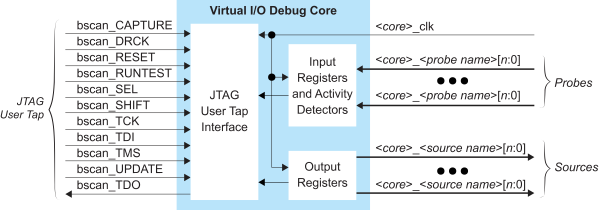
| Port | Direction | Description |
|---|---|---|
| <core>_clk | Input | Clock to register input and output ports. |
| <core>_<probe name>[n:0] | Input | Probes you add in the Profile Editor. You can add a maximum on 64 probes; the maximum probe width is 256 bits. |
| <core>_<source name>[n:0] | Output | Sources you add in the Profile Editor. You can add a maximum on 64 sources; the maximum source width is 256 bits. |
| bscan_CAPTURE | Input | Capture output from the TAP controller. |
| bscan_DRCK | Input | Gated TCK output. |
| bscan_RESET | Input | Reset output for the TAP controller. |
| bscan_RUNTEST | Input | Output asserted when the TAP controller is in the Run Test / Idle state. |
| bscan_SEL | Input | USER instruction active output. |
| bscan_SHIFT | Input | SHIFT output from TAP controller. |
| bscan_TCK | Input | JTAG test clock input (TCK). |
| bscan_TDI | Input | JTAG test data input (TDI). |
| bscan_TMS | Input | JTAG test mode select input (TMS). |
| bscan_UPDATE | Input | UPDATE output from TAP controller. |
| bscan_TDO | Output | JTAG test data output (TDO). |
Adding a Virtual I/O Core
- Open the Debugger.
- Choose .
- Input a debug profile name into the Profile name field.
- Choose .
- Specify the core name.
- Add sources (inputs to your design from the JTAG interface) and probes (outputs
from your design to the JTAG interface).
- For probes, choose a width and specify the signal to which you want to connect the probe in your design.
- For sources, choose a width and specify the signal to which you want to connect the source in your design; you can set an initial value and choose a radix for how to display the data.
- Click Generate Core RTL. The Efinity® software saves the debug profile in your project directory as <profile name>.json. The software also creates a debug template (<profile name>_TEMPLATE.v), which includes the module for the debug profile you created and <profile name>_top.v, which is the RTL logic for the debug core.
- Add the <profile name>_top.v file to your
project.Tip: In the Project pane, right-click Design and choose Add to open a dialog box to find the file and add it.
- Add a JTAG User Tap block in the Interface Designer. Choose
JTAG_USER1 as the JTAG
Resource. Note: the debug template uses the default signal names prefixed with
jtag_inst1. If you use a different name, then you should also change it in the module instantiation. - Add the debug logic into your design using these steps:
- Add all of the JTAG input and output pins to the project's top module. Refer to the JTAG User TAP block pin names in the Interfaces Design to get the pin list.
- Instantiate the debug core in the project's top module. You can copy the example code from the generated <profile name>_TEMPLATE.v or <profile name>_TEMPLATE.vhd file in the project folder.
- Connect the nets that you want to monitor and drive the FPGA signals. You need to map the net (input,
output, wire, register, and/or signal) to the port of the
instantiated debug core (
edb_top_inst).
- Compile the design.
When compilation completes, you can launch the Debugger to perform debugging.