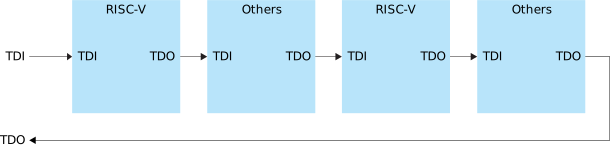
JTAG allows multiple devices to be connected to an interface in a daisy chain
configuration. This allows user to use only one debugger to access multiple devices.
In a daisy chain, only TMS and TCK signals are
common signals which means these signals are required to be routed to all devices on
the board. The first device's TDI is connected to the debugger and
its TDO is connected to the TDI of the next
device. The connection is shown in the following figure.Figure 1. Daisy Chain Connection of Multiple Devices
In IP Manager, by default, the SoC has a standalone
configuration that JTAG cannot access the device which, is outside of SoC. To fix
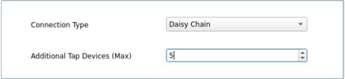
this issue, you need to change the Connection Type to
Daisy Chain. Then, specify the number of additional
devices in the chain using the option Additional Tap Devices
(Max). The total number of devices in the chain should be
Additional Tap Devices (Max)+ 1. If you select 5 (five) as option for Additional Tap Devices
(Max), then you should have a total of up to 6 (six) devices in the
chain.Figure 2. Daisy Chain Parameter Input
After generating the SoC, you need to manually edit the debug launch script to
include the device information in the chain. The debug launch script is available in
embedded_sw/<soc>/bsp/efinix/EfxSapphireSoc/openocd/debug_<type>.cfg.
The debug launch script you select depends on the tap type
that is being used on the first device, which is either Trion hardened tap, Titanium hardened
tap, or soft tap.
You need to insert information as described:
Procedure
Create a new tap using jtag newtap command to specify other
devices in the chain. You need to provide the tap details like IR length, IR
capture, and IR mask.
Create a new target if there is Sapphire SoC available with
the tap.
Figure 3. Example 1: Daisy-Chain with 2 Devices
Example 1: Two devices in the daisy chain, and one of them is running on Sapphire SoC. The debug launch script
is:
Define a name for every device in the chain. Since, there are two devices, give
it a name like line 1 and line 2.
Create a new tap with the tap details. In the figure, the device closest to the
TDO pin is the device that is without Sapphire SoC and the device closest to the
TDI is the device with Sapphire SoC.
Refer to the following table and fill the <unknown> with the correct tap
details.
Table 1. Tap Details
Device
IR Length
IR Capture
IR Mask
Soft Tap
4
0x1
0xF
Create a new target to specify the Sapphire SoC JTAG
mapping details. Refer to the following table to insert the correct JTAG
mapping.
Results
Table 2. JTAG Mapping Details
Additional Tap Devices (Max)
JTAG Mapping
1
88012211
2
88012222
3
88012233
4
88012244
5
88012255
6
88012266
7
88012277
8
88012288
Figure 4. Example 2: Daisy Chain with 4 Devices
Example 2: Four devices in the daisy chain,
and two of them are running on Sapphire SoC. The debug launch
script is:

 Example 1: Two devices in the daisy chain, and one of them is running on Sapphire SoC. The debug launch script is: