The Efinity® IP Manager is an
interactive wizard that helps you customize and generate Efinix® IP cores. The IP Manager performs
validation checks on the parameters you set to ensure that your selections are valid.
When you generate the IP core, you can optionally generate an example design targeting
an Efinix development board and/or a
testbench. This wizard is helpful when you use several IP cores, multiple instances of
an IP core with different parameters, or the same IP core across different projects.
The IP Manager consists of:
IP Catalog—Provides a catalog of IP cores you can select. Open the IP
Catalog using the toolbar button or using Tools > Open IP Catalog.
IP Configuration—Wizard to customize IP core parameters, select IP core
deliverables, review the IP core settings, and generate the custom
variation.
IP Editor—Helps you manage IP, add IP, and import IP into your
project.
Generating
Sapphire SoC with the IP Manager
The following steps explain how to customize an IP core with the IP
Configuration wizard.
Open the IP Catalog.
Choose an IP core and click Next. The IP
Configuration wizard opens.
Enter the module name in the Module Name box.
Note: You
cannot generate the core without a module name.
Customize the IP core using the options shown in the wizard. For detailed
information on the options, refer to the IP core's user guide or on-line
help.
(Optional) In the Deliverables tab, specify whether to
generate an IP core example design targeting an Efinix® development board and/or
testbench. For SoCs, you can also optionally generate embedded software example
code. These options are turned on by default.
(Optional) In the Summary tab, review your
selections.
Click Generate to generate the IP core and other selected
deliverables.
In the Review configuration generation dialog box, click
Generate. The Console in the
Summary tab shows the generation status.
Note: You can
disable the Review configuration generation dialog
box by turning off the Show Confirmation Box option
in the wizard.
When generation finishes, the wizard displays the Generation
Success dialog box. Click OK to close the
wizard.
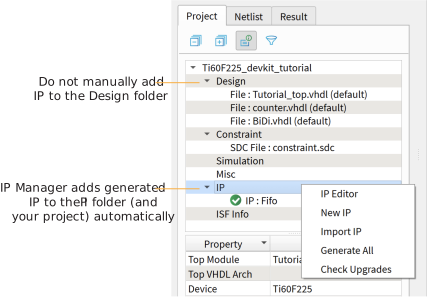
The wizard adds the IP to your project and displays it under IP in
the Project pane.
Generated RTL Files
The IP Manager generates these files and directories:
<module name>_define.vh—Contains the customized
parameters.
<kit name>_devkit—Has generated RTL, example design, and Efinity® project targeting a
specific development board.
Testbench—Contains generated RTL and testbench files.
Note: Refer to the IP Manager chapter of the Efinity Software User Guide for more
information about the Efinity IP
Manager.
Generated Software Code
If you choose to output embedded software, the IP Manager saves it into the
<project>/embedded_sw/<SoC module>
directory.
bsp—Board specific package.
config—Has the Eclipse project settings file and
OpenOCD debug configuration settings files for Windows.
config_linux—Has the Eclipse project settings file and
OpenOCD debug configuration settings files for Linux.
software—Software examples.
tool—Helper scripts.
cpu<n>.yaml—CPU file for
debugging where <n> is the core number, up to 4 cores.
Instantiating the SoC
The IP Manager creates these template files in the
<project>/ip/<module name> directory:
<module name>tmpl.v is the Verilog HDL
module.
<module name>tmpl.vhd is the VHDL component
declaration and instantiation template.
To use the IP, copy and paste the code from the template file into your design and
update the signal names to instantiate the IP.
Important: When you generate the IP, the software automatically adds the
module file (<module name>.v) to your project and
lists it in the IP folder in the Project pane. Do not add the
<module name>.v file manually (for example, by
adding it using the Project Editor); otherwise the Efinity® software will issue errors
during compilation.