Click Create a Project to open the new project
wizard.
Select the EfinixProject > Efinix Makefile Project > Next .
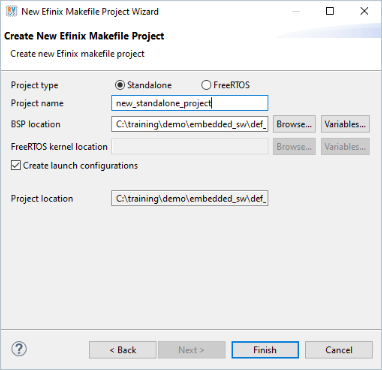
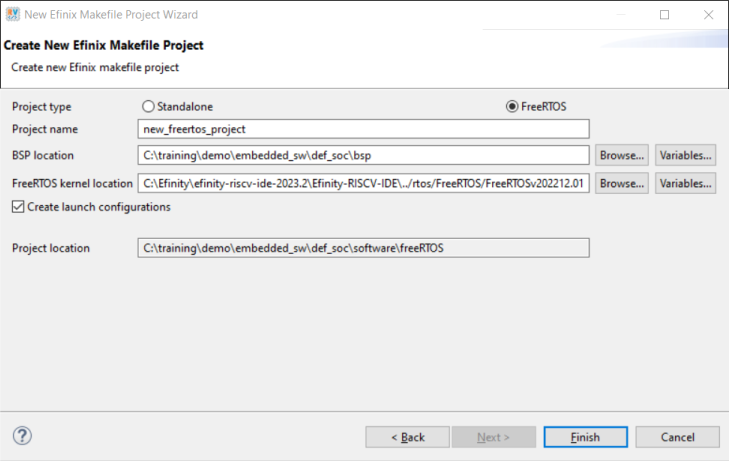
In the New Efinix Makefile Project Wizard window:
Select either Standalone or
FreeRTOS project type. With this selection, the IDE
imports the required header files.
Enter your project name. Whitespaces cause error and prevent you to complete
the new project creation.
Click on Browse... > Board Support Package (BSP). BSP location is generated by Efinity when you
generate the Sapphire High-Performance SoC with the IP Manager. Example
BSP location: C:/<project name>/embedded_sw/<ip
name>/bsp/.
Note: If the Efinity RISC-V Embedded
software IDE is launched from the IDE Launcher in Efinity software v2025.1 and later, the BSP location is automatically
detected.
Select FreeRTOS, browse to the
FreeRTOS kernel location. By default, the kernel
location is pointing to the FreeRTOS that comes with package.
The new project location shows up.
Click Finish.
Results
Figure 1. Create New Efinix Makefile Project Wizard for
Standalone Project
Figure 2. Create New Efinix Makefile Project Wizard for
FreeRTOS Project
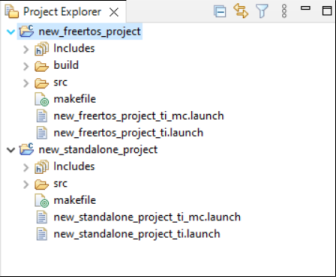
The new projects are updated in the Project Explorer
pane. All required files are imported automatically. Launch scripts for
softTap and ti configurations are
generated automatically based on the debug configuration. Both
ti.launch and ti_mc.launch is
generated if hard TAP is selected for the Sapphire High-Performance SoC.
While softTap.launch and
softTap_mc.launch is generated if soft Tap is
selected.
Figure 3. Project Explorer Pane Showing All Projects Created
You can now browse the source files. To build the
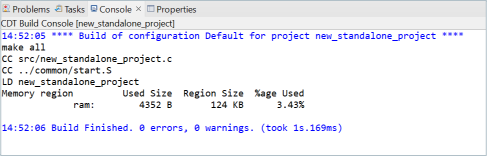
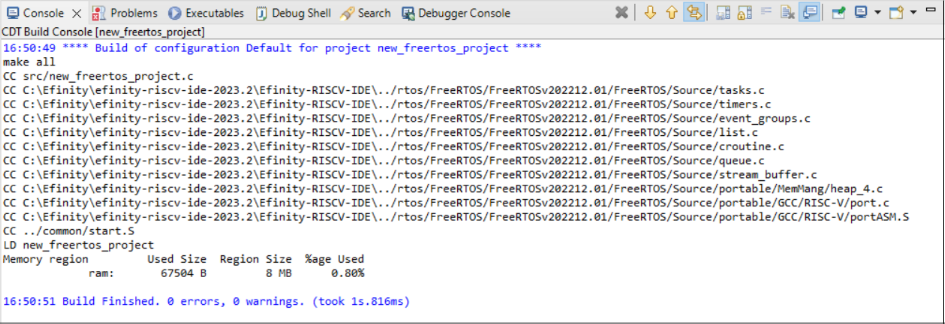
project, right-click on the project and select Clean Project > Build Project. The compilation output shows in the Console
window.
Figure 4. Output Console Showing the Newly Generated Standalone Project Built
Successfully
Figure 5. Output Console Showing the Newly Generated FreeRTOS Project Built
Successfully