IP Manager
The Efinity® IP Manager is an interactive wizard that helps you customize and generate Efinix® IP cores. The IP Manager performs validation checks on the parameters you set to ensure that your selections are valid. When you generate the IP core, you can optionally generate an example design targeting an Efinix development board and/or a testbench. This wizard is helpful when you use several IP cores, multiple instances of an IP core with different parameters, or the same IP core across different projects.
- IP Catalog—Provides a catalog of IP cores you can select. Open the IP Catalog using the toolbar button or using .
- IP Configuration—Wizard to customize IP core parameters, select IP core deliverables, review the IP core settings, and generate the custom variation.
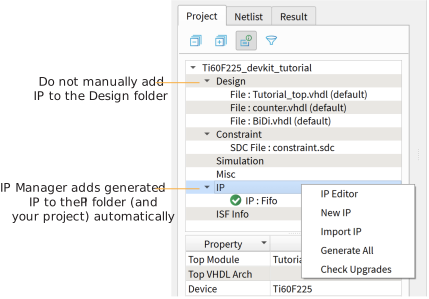
- IP Editor—Helps you manage IP, add IP, and import IP into your project.
Generating Sapphire High-Performance SoC with the IP Manager
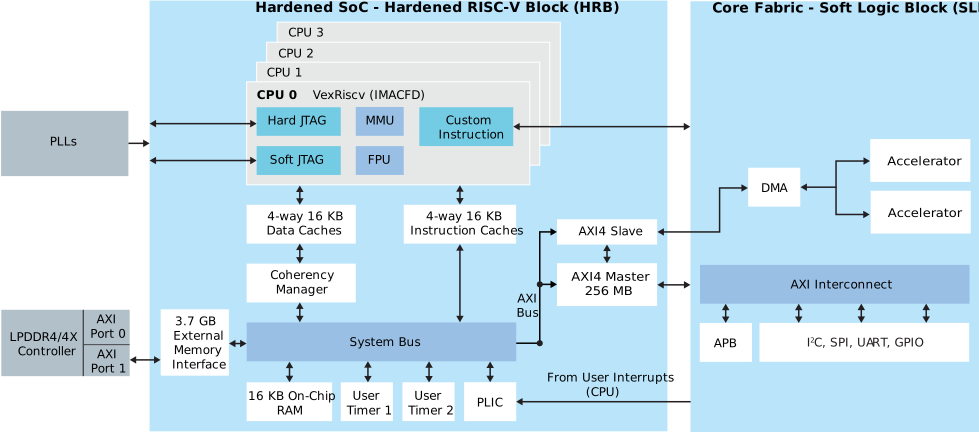
The Sapphire High-Performance SoC consists of two (2) parts, the hardened RISC-V block (HRB) and the soft logic block (SLB). The HRB includes a quad-core CPU, caches, memory management, debug module, on-chip RAM, and data traffic management. In contrast, the SLB is formed by soft logic to exercise I/O control, custom ALU, and DMA. In relation, the IP Manager helps to configure the hardened blocks and instantiate the common-use controllers like SPI, I2C, GPIO, and UART. Additionally, the IP manager assists by configuring the required blocks like PLLs and LPDDR4 controllers.
- Open the IP Catalog.
- Choose an IP core and click Next. The IP Configuration wizard opens.
- Enter the module name in the Module Name box.Note: The Sapphire High-Performance SoC soft logic block module name is fixed to EfxSapphireHpSoc_slb.
- Customize the IP core using the options shown in the wizard. For detailed information on the options, refer to the IP core's user guide or on-line help.
- (Optional) In the Deliverables tab, specify whether to generate an IP core example design targeting an Efinix® development board and/or testbench. For SoCs, you can also optionally generate embedded software example code. These options are turned on by default.
- (Optional) In the Summary tab, review your selections.
- Click Generate to generate the IP core and other selected deliverables.
- In the Review configuration generation dialog box,
click Generate. The Console in the
Summary tab shows the generation status.Note: You can disable the Review configuration generation dialog box by turning off the Show Confirmation Box option in the wizard.
- When generation finishes, the wizard displays the Generation Success dialog box. Click OK to close the wizard.
The wizard adds the IP to your project and displays it under IP in the Project pane.
Generated RTL Files
- <module name>_define.vh—Contains the customized parameters.
- <module name>_tmpl.v—Verilog HDL instantiation template.
- <module name>_tmpl.vhd—VHDL instantiation template.
- <module name>.v—IP source code.
- settings.json—Configuration file.
- <kit name>_devkit—Has generated RTL, example design, and Efinity® project targeting a specific development board.
Generated Software Code
- bsp—Board specific package.
- software—Software examples, includes FreeRTOS and baremetal demos.
Instantiating the Hardened RISC-V SoC
- Assigning top-level signal name to the block.
- Instantiating dedicated PLL to the hardened RISC-V block.
- Instantiating the required GPIO block.
- Assigning pre-defined pins to GPIO block.
Instantiating the SoC Soft Logic Block
- <module name>.v_tmpl.v is the Verilog HDL module.
- <module name>.v_tmpl.vhd is the VHDL component declaration and instantiation template.
- EfxSapphireHpSoc_wrapper.v is the wrapper file for soft logic block design.