IDE Launcher from Efinity
Starting from v2025.1, you can launch the RISC-V IDE from Efinity itself. This feature allows you to easily set-up the workspace and bsp automatically.

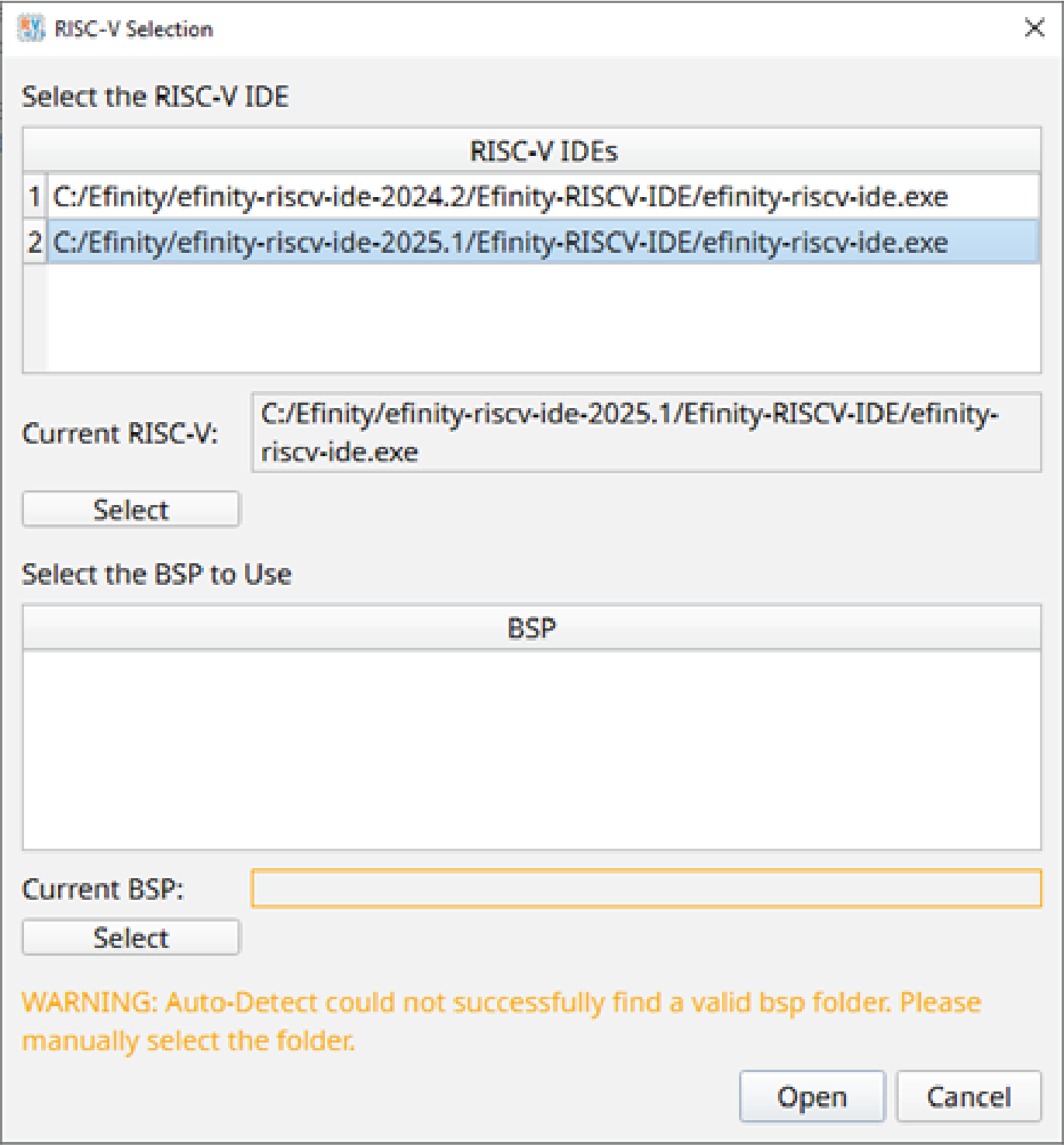
After clicking the button, a dialog pops out. It shows all the installed IDE and BSP, and detects the IDE installed in the same directory as Efinity, e.g., C:/Efinity/ or /home/efinity. If multiple IDEs being detected, you must select only one.
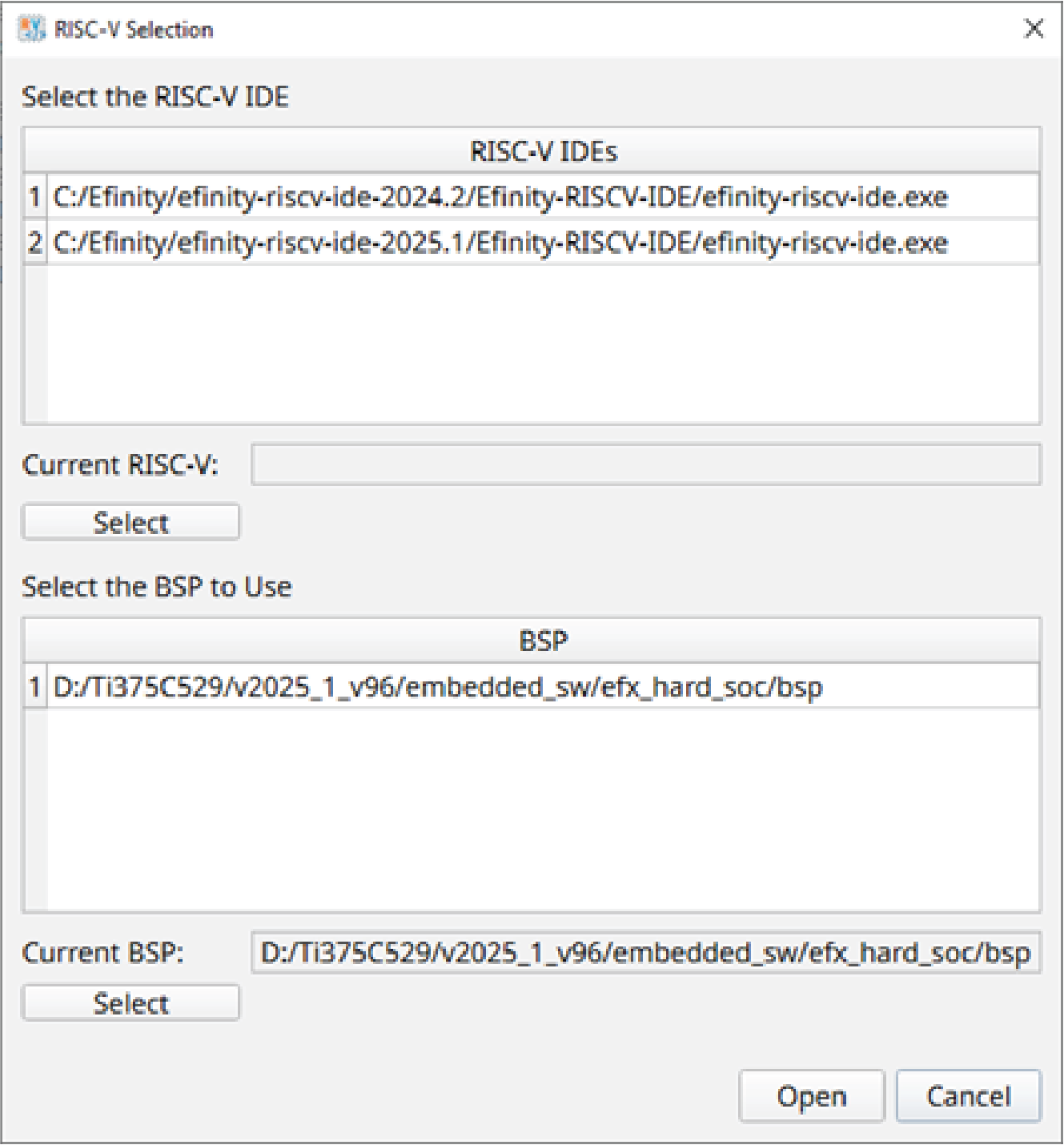
The IDE Launcher automatically detects the BSP generated after you have instantiated the Soft or Sapphire High-Performance SoC.
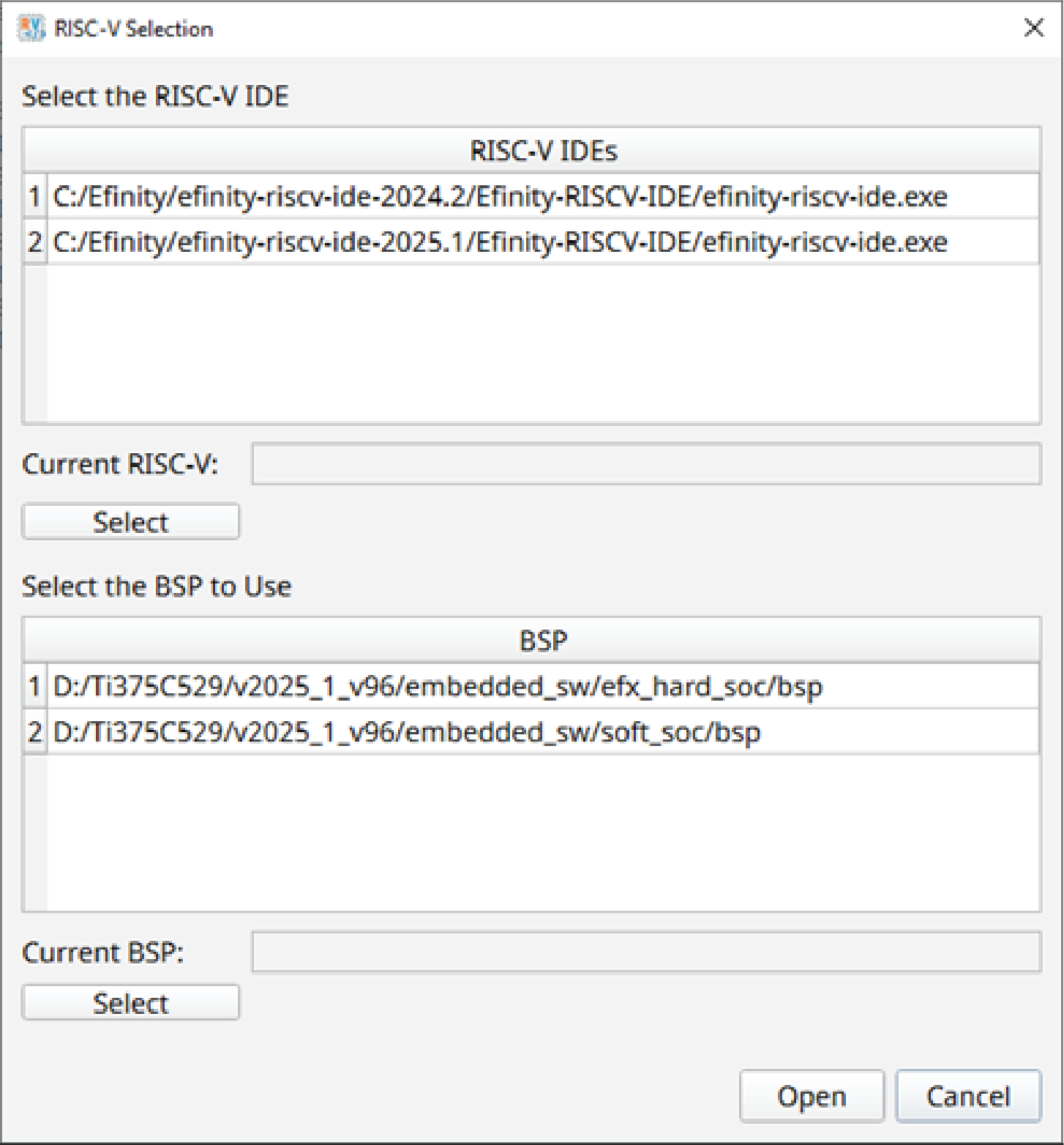
If multiple SoCs are instantiated in the project, e.g., one Sapphire High-Performance SoC and one Sapphire SoC, all the respective BSPs are shown in the BSP dialog box. Accordingly, you need to select only one to proceed.
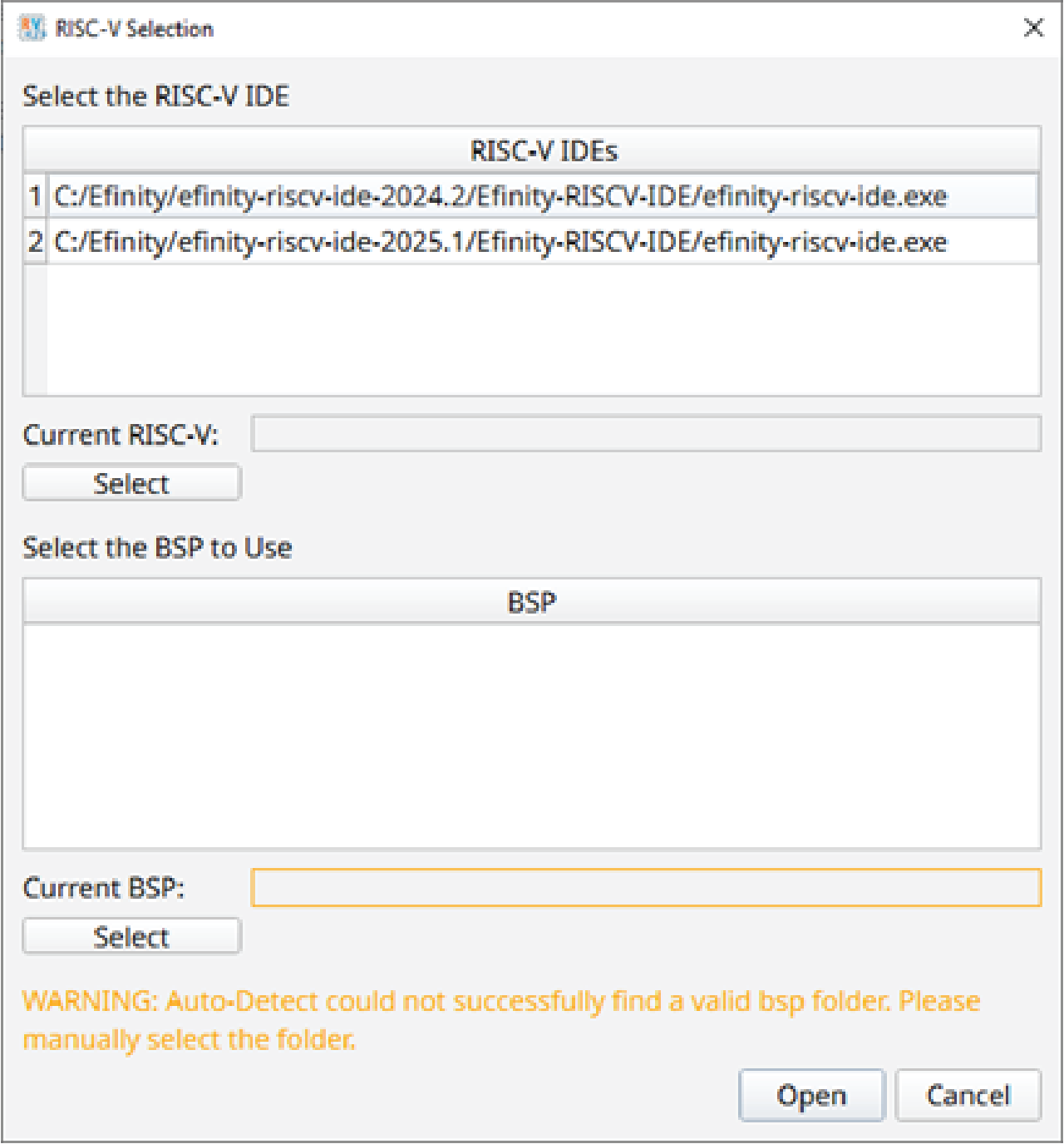
If there is no SoC IP detected, or the BSP is broken, the BSP paths are empty. In this case, you must manually point to the BSP target.
After clicking Open, the RISC-V IDE is launched without the workspace selection window. The workspace is created automatically in the embedded_sw\efx_hard_soc or embedded_sw\<soft soc name>.
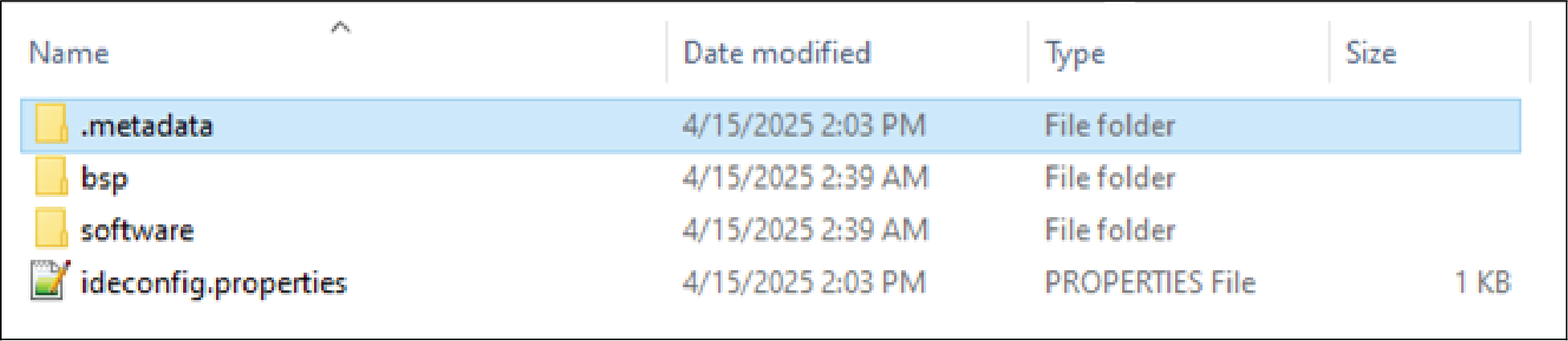
There is also an additional file, ideconfig.properties, which is created in the same directory. This file contains some information to pass into the IDE.
Move Project to Other Location or Machine
You must delete the folder.metadata and the file, ideconfig.properties before moving the projects to another location or machine. This is to prevent the IDE from using the old workspace after the move to a new location.