Efinix provides sample projects to help you get started with Sapphire High-Performance SoC. The sample projects are generated with the Efinity software. The followings steps explain how to import existing
projects into the IDE:
In the Project Explorer, click on Import
Projects... to open the Import
wizard.
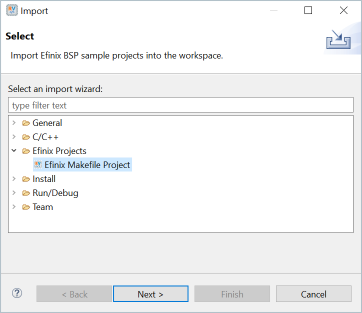
In the Import wizard, select Efinix Makefile Project in Efinix Projects and click
Next.Figure 1. Import Wizard
In the Import BSP Sample Project Wizard, click
Next to browse to the next BSP
location box.
Note: If the Efinity RISC-V Embedded software IDE is launched from the IDE
Launcher in Efinity software v2025.1 and later, the BSP
location is automatically detected.
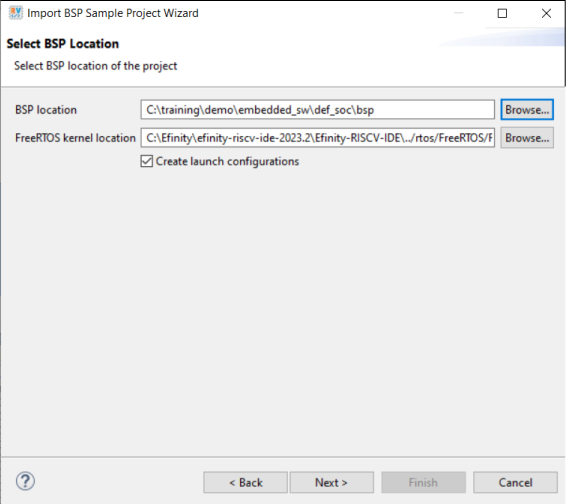
If you would like to import the FreeRTOS sample projects, browse to the
FreeRTOS kernel location. Turn on Create
launch configurations and click Next.
Figure 2. Import BSP Sample Project Wizard
Note: FreeRTOS projects is filtered if the FreeRTOS
kernel location is not defined.
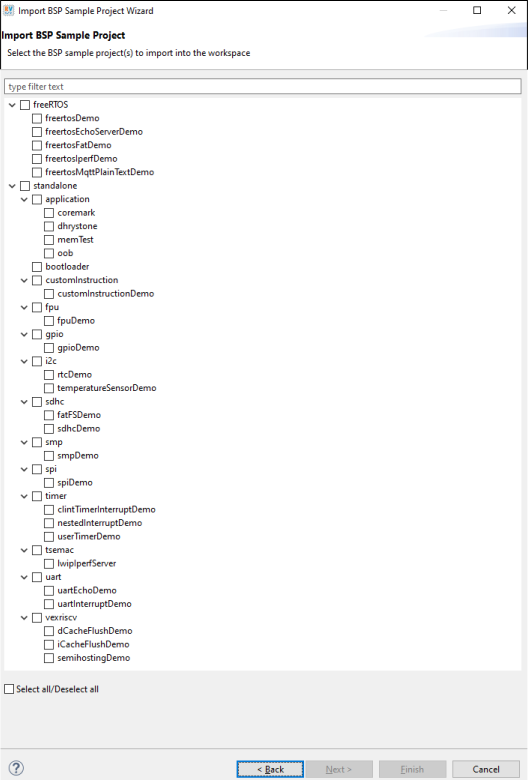
The next wizard page shows the Import BSP Sample Project Wizard,
all sample projects are located in the
embedded_sw/efx_hard_soc/software are shown. Follow these
steps:
Turn on the specific project to import that project.
You may turn on the sub-category, for example: Free RTOS, to import all the
projects belonging to that particular sub-category.
Alternatively, you may click Select all / Deselect all to
select or deselect all the projects available.
Click Next.
Figure 3. Import BSP Sample Project Wizard – List of Projects
Note:
If you have custom programs that need to be exported to the IDE, you may
either copy the programs into existing folders (FreeRTOS or Standalone) or
you can create a folder at the same level as FreeRTOS and Standalone
folders. Automatically, the IDE identifies the folder as a
sub-category.
IDE uses makefile to identify if the folder is
considered a project. Ensure that you have a valid
makefile for your custom project.
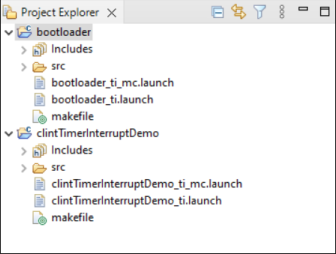
The selected sample projects are imported into the listed workspace in the
Project Explorer pane.Figure 4. Project Explorer Pane showing all the Imported Projects
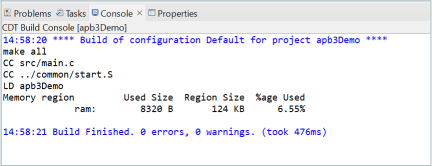
You can now browse the source files. To build the project, right-click the project name
and select Clean Project > Build Project. The compilation output shows up in the Console
window.Figure 5. Output Console showing the apb3Demo Standalone Project Built Successfully
 Note: FreeRTOS projects is filtered if the FreeRTOS kernel location is not defined.