AN 010: Using the Internal Reconfiguration Feature to Update Efinix FPGAs Remotely
Introduction
Titanium, Topaz, and Trion® FPGAs have built-in hardware that supports an internal reconfiguration feature in which the FPGA can reconfigure itself from a bitstream image stored in flash memory. This feature is useful for performing system upgrades from a remote location. In these applications, the FPGA is the "brain" that controls the system functionality (that is, there is no microcontroller or CPU).
In a typical reconfiguration flow, the FPGA first configures itself using a "golden" bitstream image as usual. Then, the FPGA receives a new application image remotely, via Ethernet, Wi-Fi, etc., and saves it to flash memory. Then, the FPGA triggers itself to reconfigure using the new image.
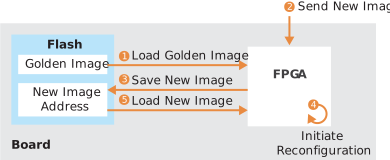
The following FPGAs support the internal reconfiguration feature.
| FPGA | Package | Supported |
|---|---|---|
| T4 | BGA49, BGA81 | – |
| T8 | BGA49, BGA81 | – |
| QFP144 |  |
|
| T13, T20, T35, T55, T85, T120 | All | |
| Titanium, Topaz | All | |
Planning for Remote Update
- Choose your flash device size to accommodate future updates.
- Ensure that the address ranges you choose for the images can accommodate future updates. (Refer to Writing to Flash Memory for more details.)
- Implement a controller to obtain the new application image from an outside source.
- Incorporate a SPI flash master block into your design to write and verify application images in flash memory.
- Ensure that any dual-purpose configuration pins used as output adhere to the signal transition time requirement. (Refer to Dual-Purpose Configuration Pin Requirement for more details.)
Dual-Purpose Configuration Pin Requirement
Some configuration pins are dual-purpose. These pins can be configured as a general-purpose input/output (GPIO) during user mode but must be set to the appropriate condition during reconfiguration. As GPIO output, these signals can be used to drive external networks such as passive components or external devices.
| Pin | Trion | Titanium and Topaz |
|---|---|---|
| CBUS2, CBUS1, CBUS0 | |
– |
| SS_N | |
– |
| SSL_N, SSU_N1 | – | |
| TEST_N | |
|
When internal reconfiguration is triggered, the FPGA falls back to
a reset state. Refer to the "Pin States" topic in the data sheet for details on the pin
state during reset (CRESET_N is low). For internal reconfiguration to
be successful, configure the pins for SPI active mode.
The high-to-low or low-to-high transition time can be impacted by the external network connecting to the dual-configuration pins. The rising-time and falling-time of the external network must fall within 800 ns to ensure that the configuration pins are stable and the reconfiguration is successful.

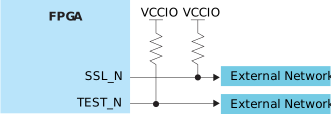
Building the Golden Design
- Enable the reconfiguration interface in the Efinity® Interface Designer.
- Include a trigger to initiate reconfiguration.
- Use active configuration mode.
- Receive and save a new application image to the flash memory.
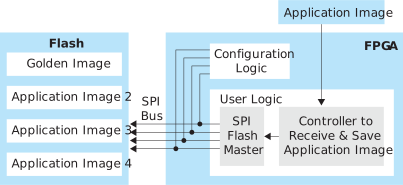
The user logic and configuration logic utilize the same SPI bus to access the images in the flash memory.
Enable Internal Reconfiguration
- Click .
- In the Block Editor, turn on Enable Internal Reconfiguration Interface.
- In the Block Editor Remote Update tab, turn on Enable Internal Reconfiguration Interface. For some FPGAs, you can specify the number of retries in the Efinity software (v2024.1 and higher) by choosing a value in the box. Otherwise, the default number of retries is six.
- Indicate the name of the clock pin that will control the internal reconfiguration.
- Define the FPGA pins that the interface uses.
- Save.
| Parameter | Choices | Notes |
|---|---|---|
| Enable Internal Reconfiguration Interface | On, off | Default: off. |
| Clock Pin Name | User defined | Specify the clock pin name used to latch cfg_CBSEL when cfg_ENA is high. |
| Invert Clock | On, off | Default: off. Turn on to invert the clock pin. |
| Image Selector [1:0] Bus Name | User defined | Multi-image select signals to the internal reconfiguration interface (not package pins). Use these signals to choose which image to load from flash memory. Efinix recommends using the default name. |
| Image Selector Capture Pin Name | User defined | When cfg_ENA is high, read the value of cfg_CBSEL. Efinix recommends using the default name. |
| Configuration Control Pin Name | User defined | Asynchronous control that initiates reconfiguration. Efinix recommends using the default name. |
| Error Status Pin Name | User defined | Status signal. Signal is set to 0 during power-up. Efinix recommends using the default name. |
| Remote Update Retries | 1-7 | Indicate the maximum number of times the FPGA
can attempt to perform the remote
update. For FPGAs that do not support
this option, the default number of retries is
six. |
Internal Reconfiguration Signals
The internal reconfiguration interface uses four control signals and a signal that selects the location of the new image. When you enable the internal reconfiguration interface in the Interace Designer, the software adds these signals to your design.
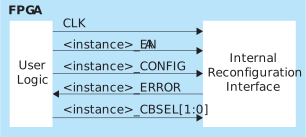
| Signal | Direction | Description |
|---|---|---|
| <instance>_CBSEL[1:0] | Input | Multi-image select signals to the internal reconfiguration interface (not package pins). Use these signals to choose which image to load from flash memory. |
| CLK | Input | Clock used to latch <instance>_CBSEL when ENA is high. The maximum supported frequency is 100 MHz. |
| <instance>_CONFIG | Input | Asynchronous control that initiates reconfiguration. |
| <instance>_ENA | Input | When <instance>_ENA is high, read the value of <instance>_CBSEL. |
| <instance>_ERROR | Output | Status signal. Signal is set to 0 during power-up. 0 if
reconfiguration is successful or no reconfiguration
triggered. 1 if the reconfiguration failed.2 |
Combining Images
About this task
You can store up to four images in flash memory and use them to configure the FPGA. You use the Efinity® Programmer to combine the images into one bitstream image that you load into the flash device.
Procedure
- Open the Combine Multiple Image Files tool in the Efinity® Programmer.
- Choose .
- Enter the desired output file name and choose the output directory.
- Select Remote Update Flash Image in the image type drop-down list.
- Select the first row for image file, click on Add Image, and add the golden image.
- Select the subsequent image file row, and add the application image.
- Click Apply to generate the combined image.
Results
If you do not assign flash addresses in the Programmer, the software automatically chooses them using 4096 boundaries. The Programmer reports the assigned addresses in the console and the report file.
Writing to Flash Memory
After you set up your system to receive an image remotely and communicate with the flash device using the SPI interface, you are ready to process new images. Efinix FPGAs can read/write to up to 4 addresses in the flash. When using the internal reconfiguration feature, the golden image is assumed to be at address 0. You can use the other 3 addresses for application images.
For many SPI flash devices, the manufacturer recommends that you erase the flash memory before performing writes. You can erase the entire device, or just a sector. Efinix recommends that the starting address for any image is an exact multiple of 4096. This boundary guarantees that you can erase/write any given image without corrupting other images or other data on the flash device.
Flow for Writing a New Application Image
- Erase the flash address you want to use.
- Write the new image.
- Read back the image and verify that it is correct.
Triggering Reconfiguration
Now that you have the golden image and one or
more application images programmed into flash, you can trigger reconfiguration. Upon
device power up, the FPGA configures with the golden image and the
CDONE pin goes high to indicate that configuration is complete. To
trigger reconfiguration:
- Select the image using the <instance>_
CBSELsignals. - Hold <instance>_
ENAhigh. - Assert <instance>_
CONFIGhigh to initiate reconfiguration. The FPGA configures itself using the selected image. - Check the value of the <instance>_
ERRORsignal. A 0 means successful reconfiguration; a 1 means reconfiguration failed.
_ERROR pin; terminate the reconfiguration
process if reconfiguration failed so that the FPGA does not
continue the loop of reconfiguring with the golden image.The configuration fails when the FPGA detects a CRC error in the configuration RAM (CRAM) bit of the new image received from the flash memory.

cfg_CONFIG signal with a flipflop to prevent
glitches. Combinational logic can trigger the the cfg_CONFIG
signal unexpectedly, violating the timing requirement.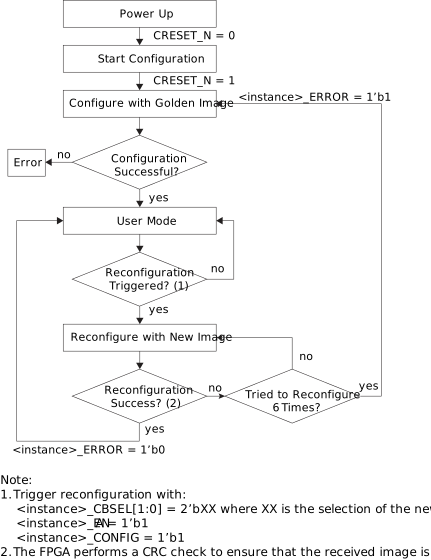
Tutorial
This tutorial shows how the FPGA can configure itself on the
fly with a new image stored in serial NOR flash memory. The design files target the Ti60 F225 Development Board by default, but can be used with other boards as
well. The example includes four projects, helloworld0, which is the
golden design, and helloworld1, helloworld2, and
helloworld3, which are for the additional images. These designs
blink the LEDs on the board with different patterns.
- Combined file using these example designs. All bitstreams are error free.
- Combined file with a corrupted bistream (third one). This bistream shows how the FPGA falls back to the golden image when it receives a bad bitstream file.
Development Board Support
- Changing the target family and FPGA in the Project Editor.
- Importing the interface design for another board with the provided Interface Settings File (.isf).
The .isf files are named according to which board they support. For example, Ti60F225_kit.isf is for the Ti60 F225 Development Board. Most boards are supported.
Prepare the Tutorial Files
About this task
In this step you set up your environment and copy the remote update tutorial design to your working directory.
Procedure
-
Run the Efinity setup script if you have not already done so:
- Linux:
source <Efinity path>/bin/setup.sh - Windows:
<Efinity
                                path>\bin\setup.bat
- Linux:
-
Copy the folder
<Efinity
                            path>/examples/helloworld-ru
to your working directory. - Connect the Ti60 F225 Development Board (or another board) to your computer using a USB cable.
Review the Designs
About this task
In this step you review the helloworld0 project, which is the golden
design.
Procedure
-
Open the
helloworld0project in the<Efinity path>/examples/helloworld-ru/helloworld0directory. - Open the Interface Designer.
- Click .
- Review the settings in the Remote Update tab.
- Compile the project.
-
Repeat steps 1 - 5 for the
helloworld1,helloworld2, andhelloworld3projects.
Create Combined Image
About this task
In this step you create the multi-image bitstream.
Procedure
-
Combine the bitstreams for all of the helloworld projects using the
instructions in Combining Images. You do not need to provide
the flash addresses; let the Programmer choose them. It uses these
addresses:
Option Description helloworld0 0x00000000 helloworld1 0x00125000 helloworld2 0x0024a000 helloworld3 0x0036f000 Figure 9. Combining Images  For Titanium and Topaz FPGAs, the Advanced Device Configuration Status
Use Another Board
Using another board is easy. First, change the device and family:
- Choose . The Project Editor dialog box opens.
- Choose the device family in the Family drop-down list box.
- Click Select next to Device. The Device Selector dialog box opens.
- Choose the device on your board and click OK.
- Choose Create New Design.
- Turn off the Enable Design Backup option.
- Click Next.
- The software gives a message that migration completed. Turn on the Open Interface Design option.
- Click Finish. The Interface Designer opens.
- Choose . The Import Design dialog box opens.
- Choose Interface Scripting File (.isf) and click Next.
- Click the file button to browse for the .isf.
- Choose the .isf for your board.
- Click Finish. The Interface Design loads the settings.
- Save.
Revision History
| Date | Version | Description |
|---|---|---|
| March 2026 | 3.0 | Updated to include Topaz family. Describes how to
use example design provided with the Efinity software
v2025.2 and higher. Updated number of retries, waveform,
and flow chart in Triggering Reconfiguration.
(DOC-2951) |
| August 2024 | 2.5 | Added Figure 7. (DOC-1838) Updated Table 1,
Enable the Internal Reconfiguration Interface. Added footnote for
Table 4 (DOC-1923) |
| June 2023 | 2.4 | Updated Internal Flash Image GUI name to Remote Update Flash Image. (DOC-1337) |
| December 2022 | 2.3 | Added maximum supported CLK frequency. (DOC-1028) Added support
for Ti90, Ti120, and Ti180 FPGAs. |
| June 2022 | 2.2 | Updated <instance>_ERROR description. (DOC-817) |
| February 2022 | 2.1 | Added details on what happens if reconfiguration fails. (DOC-685) |
| August 2021 | 2.0 | Added support for Titanium FPGAs. |
| August 2020 | 1.3 | Added the total duration for the 6 reconfiguration
attempts. Added a note about configuration fails if the Trion FPGA detected CRC error in volatile CRAM bit on
of the new image. Corrected CBSEL description as a
selection instead of address. Removed the note about some
Trion FPGA have CRC check at the end of
configuration. Removed the note about referring to Efinity
Software User Guide and added steps on how to combine bitstream
files. Added steps to create multiple image
files. |
| May 2020 | 1.2 | Updated device support. |
| May 2020 | 1.1 | Added a topic on dual-purpose configuration pin transition time requirement. |
| February 2019 | 1.0 | Initial release. |