AN 073: Titanium 10G Ethernet across Data and Physical Layers (Example Design)
Introduction
Hardware & Software Requirements
- Efinity software v2025.1 (or later).
- Titanium Ti375 N1156 Development Kit, which includes:
- Titanium Ti375 N1156 Development Board
- USB Type-C to Type-A Cable
- 12 V, 6.25A universal power adapter with 5.5 mm DC power converter
- Cooling fan
- Thermal pad
- Jumpers
- x4 standoffs
- Ethernet modules:
- Ethernet cables:
- Fiber-optic cable (required if the Ethernet modules are optical modules)
- CAT6 or better copper cable (required if the Ethernet modules support RJ45)
- If you would like to monitor the Ethernet packet traffic using Wireshark, you will need a Windows- or Linux-based computer with a 10G Ethernet Network Interface card and the Wireshark application installed.
Example Design Description
This example design consists of the building blocks and data path as shown below.
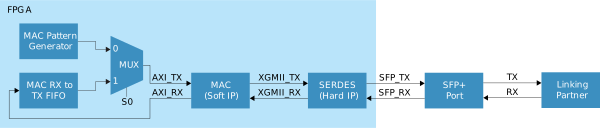
The example design supports the following hardware tests:
- Self-Loopback Test: This test sources Ethernet traffic from the MAC pattern generator. For this test, you replace the linking partner with an SFP+ loopback module. This is the simplest hardware setup and allows you to check that the design is working for TX and RX paths.
- Reverse Loopback Test: This test sources Ethernet traffic from the linking partner and bypasses traffic from the MAC pattern generator. For this test, we need to loop back Ethernet traffic coming from the linking partner and arriving at the AXI streaming interface of the Ethernet MAC along the RX path to the TX path. This hardware test is an indicator of the effectiveness of the design’s communication with the linking partner. This linking partner can be another piece of development board loaded with the Ethernet design or a computer with a 10G Ethernet NIC card.
- Wireshark Interaction Test: This test sources Ethernet traffic from the MAC pattern generator. The linking partner is a computer with the Wireshark application installed. You use this test to monitor data transfers and to ensure that each byte is correctly transmitted to the linking partner.
Efinity Debugger includes the following functionalities:
- User control of the MAC pattern generator. Refer to the MAC Pattern Customization for more information.
- Display of the Ethernet MAC statistic counters to monitor the health of the Ethernet packets transmission.
- PCS registers read to check the status or settings of the Ethernet 10G PCS block.
- Logic Analyzer to capture the MAC pattern waveform at the AXI-ST interface and Ethernet packets at the XGMII interface.
The clocks and their respective frequencies are as shown below. These clocks are created in the Efinity Interface Designer by a PLL clocked at reference frequency of 100MHz.
- Q1_APB_CLK: 200MHz clock for APB peripherals.
- DEBUG_CLK: 200MHz clock for debug blocks such as Efinity Debugger.
- INIT_CLK: 50MHz clock for initialization blocks that configure SERDES to 10G Ethernet. This initialization process uses a MIF file. Refer to section on Ethernet 10G MAC Example Design of the Ethernet 10G MAC Core User Guide for more details.
Setting Up the Hardware
You can conduct various tests using this example design. Once you identify which test you would like to run you need to ensure that you have set up the hardware correctly according to the steps outlined in each section. For the VCCIO settings, follow the jumper settings as shown in the following table to set voltage level to 3.3V, the default voltage supply on the board.
| Header | Pins to Short |
|---|---|
| J7 | 5-6 |
| 7-8 | |
| J6 | 5-6 |
| 7-8 | |
| J18 | 5-6 |
| 7-8 |
Ethernet XGMII Setting in Interface Designer
| Header (SFP+ Transceiver Interface) | XGMII Resource |
|---|---|
| J9 | Q1_LN0 |
| J10 | Q1_LN1 |
| J11 | Q1_LN2 |
| J12 | Q1_LN3 |
SFP+ Settings in Interface Designer
This section assumes that you are already familiar with the use of the Efinity Interface Designer. For some SFP+ modules, you may need to pull the
TX_DISABLE pin either high or low to turn on the TX signal. The Efinity Interface Designer pulls the following pins low by default. Refer to the
your SFP+ module datasheet for the correct voltage setting for this pin. After identifying the
correct voltage settings, open the Efinity Interface Designer and ensure that
each of the pins shown the following table are correctly set for each of the SFP+
interfaces.
| Header (SFP+ Transceiver Interface) | Ti375 Pin Name |
|---|---|
| J9 | BR1_GPIOR_153 |
| J10 | BR4_GPIOR_179 |
| J11 | TR5_GPIOR_128 |
| J12 | TR3_GPIOR_115 |
Forward Self-Loopback Test
Follow these steps to perform a forward self-loopback test and to check that your design’s TX and RX paths are working as intended.

- Set the jumpers as shown in Table 1.
- Insert the SFP+ loopback module or an SFP+ module plugged with a loopback cable/adapter into the SFP+ port J11 of the Titanium Ti375 N1156 Development Board.
- Connect the USB header on the Titanium Ti375 N1156 Development Board to a USB port on your computer with the Efinity software installed.
- Ensure that you have turned off the 12V power adapter.
- Connect off power adapter to the J1 port on the Titanium Ti375 N1156 Development Board.
- Turn on the 12V power adapter.
Board-to-Board Hardware Test
Efinix recommends that you perform the board-to-board hardware test using two computers; however, you can also perform the test using a single computer. For the sake of completeness, we provide guidance for both conditions.
Single Computer Board-to-Board Hardware Test
- Program the first Titanium Ti375 N1156 Development Board and configure it to run in reserve loopback mode according to the steps in the Reverse Loopback Test section.
- Unplug the USB Type-C to Type-A cable from the USB1 port on the first Titanium Ti375 N1156 Development Board and plug it into the USB1 port on the second Titanium Ti375 N1156 Development Board.
- Configure the second Titanium Ti375 N1156 Development Board to run in forward loopback mode according to the steps in the Forward Self-Loopback Test section.
Two Computer Board-to-Board Hardware Test
Using two computers offers you better control of each board and enhanced monitoring of the output results. Follow these instructions to perform a board-to-board hardware test using two computers.
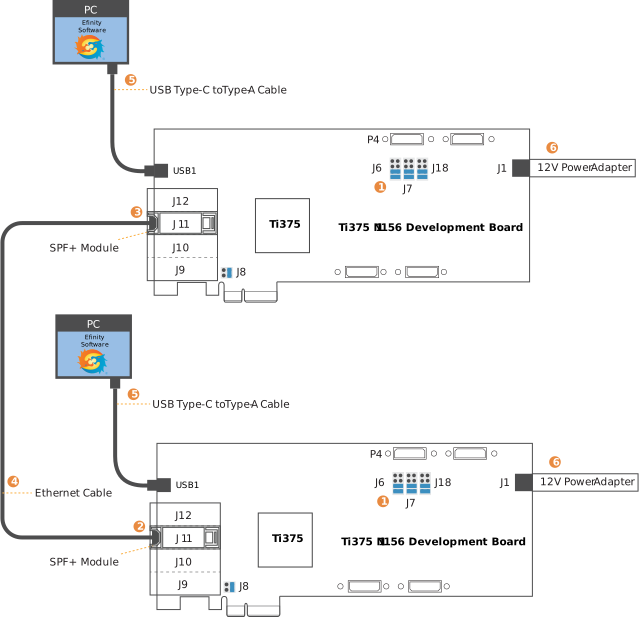
- Ensure that the jumpers are set as shown in Table 1.
- Insert the SFP+ module into the SFP+ port J11 of the first Titanium Ti375 N1156 Development Board.
- Insert the SFP+ module into the SFP+ port J11 of the second Titanium Ti375 N1156 Development Board.
- Connect the SFP+ module on each of Titanium Ti375 N1156 Development Board using an Ethernet cable.
- Connect the USB header on the Titanium Ti375 N1156 Development Board to a USB port on your computer with the Efinity software installed.
- Ensure that you have turned off the 12V power adapter.
- Connect the turned-off power adapter to the J1 port on the Titanium Ti375 N1156 Development Board.
- Turn on the 12V power adapter.
Board-to-Computer Hardware Test
Follow these steps to perform a board-to-computer hardware test.
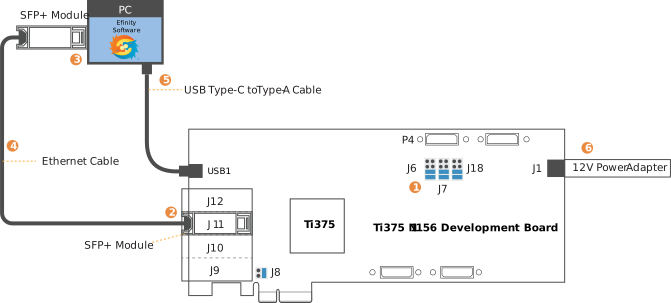
- Ensure that the jumpers are set as shown in Table 1.
- Insert the SFP+ module into the SFP+ port J11 of the Titanium Ti375 N1156 Development Board.
- Insert the SFP+ module into the SFP+ port of the computer.Note: Ensure that the computer has a NIC card that can support 10G Ethernet.
- Connect the SFP+ modules using an Ethernet cable.
Note: Ensure that the Ethernet cable can support 10G Ethernet.
- Connect the USB header on the Titanium Ti375 N1156 Development Board to a USB port on your computer with the Efinity software installed.
- Ensure that you have turned off the 12V power adapter.
- Connect the turned-off power adapter to the J1 port on the Titanium Ti375 N1156 Development Board.
- Turn on the 12V power adapter.
Running the Example Design
This section outlines the steps needed to run various hardware tests. This section assumes that you are already familiar with the use of the Efinity Programmer and Debugger. For more information on the use of the Efinity Programmer and Debugger, refer to the Efinity Software User Guide.
User LED Description
The following table provides an overview of the user LEDs. You can monitor the status of these LEDs for quick insights into the operation of the example design.
| User LED | Description |
|---|---|
| 1 | Signals hardware initialization check. If LED2, LED3, and LED4 are ON at the initial stage, LED1 will turn ON. If any of these LEDs goes OFF during the operation, LED1 will also turn OFF. LED1 can only turn ON when all three user LEDs are ON plus a CRESET. LED1 provides a useful indicator, signaling whether any of the three user LEDs has turned OFF in the middle of operation. |
| 2 | BLOCK_LOCK signal from SERDES. Indicates successful block lock. |
| 3 | PCS_STATUS signal from SERDES. Indicates general PCS ready status. |
| 4 | PMA_RX_SIGNAL_DETECT signal from SERDES. Indicates detection of a high-speed signal on the RX differential inputs. If user LED2 and LED3 are ON, and LED4 is off, check to ensure the SFP+ module or Ethernet cable is not loose. You should ensure that the SFP+ module is ON. Refer to section SFP+ Setting in Interface Designer for more information. |
| 5 | Signal Ethernet packets transmission detected in the TX path. |
| 6 | Signal Ethernet packets reception detected in the RX path. |
Statistics Reporting Counters
The Efinity Debugger has counters, named initial
q1_l2_cnt_[*], under the vio0 tab. These
counters provide statistical reporting for TX and RX. You can read the numbers from these
counters to learn about the status of transmitted and received Ethernet packets. You can reset
these counters by setting the value of q1_l2_cnt_rst_n from 1 to 0.
Program the Board
- Ensure you are using Efinity software v2025.1 (or later) .
- Ensure your board is properly set up according to Setting Up the Hardware.
- Download the example design files from the Efinity page of the Support Center and extract the design files.
- Start the Efinity software.
- Browse to <path>/eth10g_exp_macpat_maclpbk/
eth10g_exp_macpat_maclpbk.xml to open the project file.
- You can review the design and modify the Ethernet XGMII resources and SFP+ pin assignments according to Setting Up the Hardware.
- If you change either the Ethernet XGMII resources or SFP+ pin assignment, you must regenerate the bitstream; otherwise, continue to the next step.
- Start the Efinity Programmer.
- Select .
- For the Bitstream File, browse to outflow folder and select eth10g_exp_macpat_maclpbk.hex.
- Click the Start Program button to begin programming the Titanium Ti375 N1156 Development Board with the selected bitstream file.
- Wait until the message JTAG2SPI programming…done appears in the console window.
- Press the SW2 CRESET_N button on the Titanium Ti375 N1156 Development Board to reset the FPGA.
- Ensure that the user LED2, LED3, and LED4 are ON when a linking partner is present. Refer to Table 4 for more information.
Forward Loopback Test
For the forward loopback test, the MAC pattern generator creates a MAC pattern, which it passes to the 10G Ethernet MAC AXI-ST interface across the TX path. The MAC converts this pattern into Ethernet packets and passes them to the transceivers through the XGMII interface across the TX path. These Ethernet packets loop back from the TX path to the RX path through an SPF+ loopback module, loopback cable, or a Titanium Ti375 N1156 Development Board configured in reverse loopback mode.
- Follow the steps in the Forward Self-Loopback Test section to perform a quick hardware test to validate the TX and RX paths.
- Follow the steps in the Board-to-Board Hardware Test section to validate the board-to-board connectivity.
- Follow the steps in the Program the Board section to bring up the design on the Titanium Ti375 N1156 Development Board.
- If you are performing a board-to-board hardware test, complete the steps in the Reverse Loopback Test section on the second Titanium Ti375 N1156 Development Board; if not, proceed to the next step.
- Start the Efinity Debugger
- Click the Connect Debugger button to link the Debugger to the development board.
- Select the vio0 tab in the Efinity Debugger.
- In the vio0 tab, ensure value of
pat_lpbk_axist_selis 0. - Change the value of
q1_l2_patgen_ento 1 to start generating MAC patterns.
- You will observe user LED5 and LED6 turn ON, indicating the detection of Ethernet packets on both TX and RX paths.
- In the vio0 tab, you should observe the value of
q1_l2_cnt_tx_frame_transmitted_goodwill increase, indicating the transmission of Ethernet packets via the TX channel. - In the vio0 tab, you should observe the salue of
q1_l2_cnt_rx_received_totalandq1_l2_cnt_rx_frame_received_goodincreasing as a result of the Ethernet packets at the TX path undergoing forward loopback to the RX path.
- In the vio0 tab, change the value of
q1_l2_patgen_ento 0 to stop the generation of MAC patterns. User LED5 and LED6 will turn OFF. - In the vio0 tab, you will observe the value of
q1_l2_cnt_rx_frame_received_good,q1_l2_cnt_rx_received_total, andq1_l2_cnt_tx_frame_transmitted_goodare matched.
Reverse Loopback Test
- Follow the steps in the Board-to-Board Hardware Test section to validate the board-to-board connectivity.
- Follow the steps in the Board-to-Computer Hardware Test section to validate the interaction between your computer and the Titanium Ti375 N1156 Development Board.
- Follow the steps in the Program the Board section to bring up the design on the Titanium Ti375 N1156 Development Board.
- Ensure that the linking partner is not currently generating any Ethernet packets.
- Start the Efinity Debugger
- Click the Connect Debugger button to link the Debugger to the development board.
- Select the vio0 tab in the Efinity Debugger.
- In vio0 tab, set the value of
pat_lpbk_axist_selto 1. - Start generating Ethernet packets at the linking partner.
- If you are using another Titanium Ti375 N1156 Development Board as the linking partner, follow the steps in the Forward Loopback Test section to start the MAC pattern generator.
- You will observe the user LED5 and LED6 turn ON, indicating the detection of Ethernet packets on both TX and RX paths.
- In the vio0 tab, you should observe the value of
q1_l2_cnt_rx_received_totalandq1_l2_cnt_rx_frame_received_goodincreasing in response to the detection of Ethernet packets on the RX path. - In the vio0 tab, you should observe the value of
q1_l2_cnt_tx_frame_transmitted_goodincreasing, indicating that Ethernet packets from the RX path are being reversed looped back to the TX path. - If you are using another Titanium Ti375 N1156 Development Board as the linking partner, you can check the statistic reporting counters in the Efinity Debugger linked to the board for test output results.
Wireshark Test
This section assumes that you are familiar with the Wireshark application. Wireshark is a free open-source network packet analyzer used to analyze network traffic in real time for Windows and Linux operating systems. You can link this example design to a computer with Wireshark installed to view the Ethernet packets sourced from the MAC pattern generator.
Preparing Your System
- Follow the steps in the Board-to-Computer Hardware Test section to set up the hardware.
- Follow the steps in the Program the Board section to bring up the design on the Titanium Ti375 N1156 Development Board.
- Start the Efinity Debugger.
- Click the Connect Debugger button to link the Debugger to the development board.
- Select the vio0 tab in the Efinity Debugger.
- In the vio0 tab, ensure the value of
pat_lpbk_axist_selis 0. - Change the value of
q1_l2_patgen_ento 1 to start generating MAC patterns.
- You will observe user LED5 turn ON, indicating the detection of Ethernet packets on the TX path.
- LED6 may occasionally blink in response the receipt of ARP Ethernet packets from the
computer. The value of
q1_l2_cnt_rx_received_totalandq1_l2_cnt_rx_frame_received_goodwill update to reflect the reception of these packets. - In the vio0 tab, you should observe the value of
q1_l2_cnt_tx_frame_transmitted_goodincrease in response to Ethernet packets being transmitted along the TX channel.
Running the Wireshark Test
- Start the Wireshark application..
- Select the target NIC card to start probing the incoming Ethernet packets from the Titanium Ti375 N1156 Development Board.
Results:
You should observe the output as shown in the following figures.

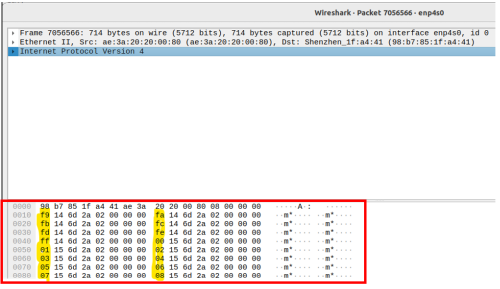
- For each row, from left to right, the highlighted bytes are in an incremental
sequence when the value of
q1_l2_pat_rand_enis set to 0 under tab vio2 in the Efinity Debugger.
Using the Logic Analyzer
This section assumes you are familiar with the Logic Analyzer in the Efinity Debugger. The example design includes a Logic Analyzer profile. You use this profile to capture the MAC pattern waveform at the AXI-ST interface, as well as those of Ethernet packets detected at the XGMII interface. Follow the steps below to use the Logic Analyzer.
- Start the Efinity Debugger.
- Click the Connect Debugger button to link the Debugger to the development board.
- In the la0 tab, click the Add Trigger
Condition button to add a triggering point. Choose the targeted trigger
condition from the list of available signals (e.g.,
Q1_L2_tx_axis_mac_tvalid). - Set the value of the trigger condition by pressing on the drop-down menu.
- If you want to add more trigger conditions, repeat steps 3 and 4.
- Press the Trigger Condition drop-down menu to set the triggering conditions between multiple signals.
- Press the Run button to run the Logic Analyzer.
Results:
The Efinity Debugger will produce a waveform when the trigger conditions are met.
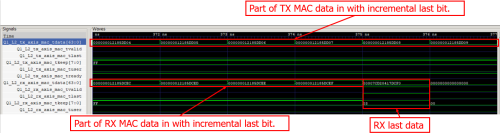
The MAC pattern generator generates MAC patterns in increment last bit whereby the
value of q1_l2_pat_rand_en is set to 0 under the
vio2 tab in the Efinity Debugger.
MAC Pattern Customization
- Start the Efinity Debugger.
- Click the Connect Debugger button in the Efinity Debugger to link the Debugger to the Titanium Ti375 N1156 Development Board.
- In the vio0 tab, ensure that the value of
q1_l2_patgen_enis set to 0 to stop the generation of MAC patterns. - Set the value of
q1_l2_cnt_rst_nto 0 to reset the values of the statistical counters from the previous test. Remember to set the value ofq1_l2_cnt_rst_nback to 1 reset the counters ahead of the next test.- Skip this step if you would like to keep the statistical results from the previous test.
- In the vio2 tab, change the value of each of the parameters as
shown in the following table.
Name Data Width Default Value(Hex) Descriptions q1_l2_pat_rand_en 1 0 Assert this bit to enable the generation of a random MAC pattern. q1_l2_pat_gen_num 20 0 Set the value to control the number of MAC patterns generated. When this value is set to 0, the MAC pattern generator produces an infinite MAC pattern. When this value is 0, use “q1_l2_patgen_en” in vio0 tab to stop MAC pattern generation. q1_l2_pat_gen_inter 16 24 Set the value to control the length of the interval to the next generated MAC pattern. q1_l2_dst_mac 48 98b7851fa441 Set the value for MAC destination address. q1_l2_src_mac 48 ae3a20200080 Set the value for MAC source address. q1_l2_mac_dlen 16 2bc Set the value to control the length of the generated MAC pattern. - In the vio0 tab, set the value of
q1_l2_patgen_ento 1 to restart the generation of MAC patterns. - Repeat steps 2 to 5 if you want to change any MAC pattern parameters.
Reading PCS Registers
- Start the Efinity Debugger.
- Click the Connect Debugger button in the Efinity Debugger to link the Debugger to the Titanium Ti375 N1156 Development Board.
- In the vio0 tab, change the value of
q1_usr_apb_addrto the PCS register target address (e.g., c00200: the control register address in hexadecimal). - Ensure that the value of
q1_usr_apb_writeis 0 (required for APB read). - Change the value of
q1_usr_apb_startfrom 0 to 1 to 0 (create a pulse) to start the APB read operation. - Change the value of
q1_ram_usr_addrto the address of the user RAM used to store the value read from the targeted PCS registers (e.g., 01). - Change the value of
q1_ram_usr_wrenfrom 0 to 1 to 0 (create a pulse) to write the result read from the targeted PCS register set in step 2 to the user RAM with its address provided in step 6. The Efinity Debugger will output the following messages in response to the read data being written to the user RAM.- q1_ram_dout_a: The address of the targeted PCS register (e.g., c00200).
- q1_ram_dout_d: The data read from the targeted PCS register (e.g., 00091003).
The example results above show that the 32’h00091003 value comes from address 24’hc00200 in the PCS register. This APB read result is stored in the user RAM (i.e., defined in step 6) as address 5’h01.
- Repeat steps 2 to 6 to perform the APB read on other PCS registers and to store the read results in user RAM.
- To retrieve the APB read results from any of the user RAM, simply change the value of
q1_ram_usr_addr, and the result previously stored read results will be displayed.
Restoring the Example Design
- Download the example design files from the Example Designs page of the Support Center and extract the design files.
- Start the Efinity software.
- Browse to <path>/eth10g_exp_macpat_maclpbk/ eth10g_exp_macpat_maclpbk.xml to open the project file.
- Note the default settings for Ethernet XGMII resources and SFP+ pin assignment according to the section Setting Up the Hardware.
- Start the Efinity Programmer.
- Choose .
- For the bitstream file, browse and select prebuilt/ eth10g_exp_macpat_maclpbk.hex.
- Click the Start Program button to program the Titanium Ti375 N1156 Development Board with the selected bitstream file.
- In the console window, wait until the message JTAG2SPI programming…done appears.
- Press the SW2 CRESET_N button on the Titanium Ti375 N1156 Development Board to reset the FPGA.
- When the linking partner is present, USER LED2, LED3 and LED4 should turn ON. Refer to Table 4 for more information.
Acronyms
| Term | Definition |
|---|---|
| APB | Advanced Peripheral Bus |
| ARP | Address Resolution Protocol |
| AXI-ST | Advanced eXtensible Interface - Stream |
| CAT | “Category” of Ethernet Copper Cable |
| FE | Frame Error |
| MAC | Media Access Controller |
| MIF | Memory Initialization File |
| NIC | Network Interface Card |
| OSI | Open System Interconnections |
| PCS | Physical Coding Sublayer |
| PLL | Phase-Locked Loop |
| PMA | Physical Media Attachment |
| RAM | Random Access Memory |
| RX | Receive Channel |
| SERDES | Serial-Deserializer Block |
| SFP | Small Form-factor Pluggable |
| TX | Transmit Channel |
| VIO | Virtual Input/Output |
| XGMII | 10 Gigabit Media-Independent Interface |
Revision History
| Date | Version | Description |
|---|---|---|
| June 2025 | 1.1 | Fixed typos. |
| June 2025 | 1.0 | Initial release. |
- ×1 FS SFP-10GM-T-30 Generic Compatible 10M/100M/1G/2.5G/5G/10Gbps NBASE-T SFP+ Copper 30m RJ-45 Transceiver Module
- ×1 F-tone FTCS-8525G-02DTL 25G SFP28 SR 850nm Optical Transceiver Module