AN 050: Managing Windows Drivers
Introduction
Efinix® development boards have a USB connector that lets the Efinity® software on your computer communicate with the board. For nearly all boards (the exception is the T8 BGA81 development board), an FTDI chip handles the communication between the USB port and the FPGA. This FTDI chip needs a driver.
Installing, uninstalling, and generally managing these drivers can become a roadblock to using your development kit(s). If you are reading this document, chances are you have tried to install a driver and are having problems (sorry about that). In that case, you might want to go directly to Managing Drivers or Troubleshooting.
This application note gives you the whole story about drivers, describes different scenarios you might experience, and walks you through possible solutions. If you are having a problem not described here, feel free to report it in the forum in our Support Center.
What is a VID/PID?
When you plug a device into the USB port on your computer, the computer reads the vendor ID (VID) and product ID (PID). The computer then uses the combination of these two numbers (VID/PID) to find a driver for the device.
When you connect an Efinix development board to your computer with a USB cable, the VID/PID the computer reads is the one from the FTDI chip on the board. Therefore, every Efinix development board that has the same FTDI chip has the same VID/PID. Many other vendors do the same thing: they simply use the VID/PID of the FTDI chip on the board. You might ask "why don't board vendors get their own unique VID/PID?" The reality is that the licensing costs for these unique numbers become a barrier.
What Does the FTDI Chip Do?
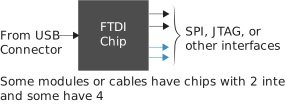
The FTDI chip receives/sends data from a USB interface on the one side and sends/receives data from one or more interfaces on the other side. On Efinix development boards, the FTDI chip is used primarily for the SPI and JTAG interfaces to the FPGA. For some boards, an interface connects to the UART or other specialty interfaces.
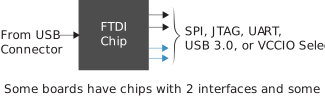
If you are developing your own board, you probably will not put an FTDI chip on it. However, you do probably have a JTAG header. In this case, you might want to program the FPGA using the Efinity software running on your computer via an FTDI breakout-board, mini-module, or cable.
About the Windows Drivers
For Windows systems, the current guidance from Efinix is:
- For the T8 BGA81 development board, install the libusbK driver as a composite driver.
- For all other Efinix boards, use the libusb-win32 driver for separate interfaces.
You install drivers with the Zadig software v2.7 (or later). Follow the instructions in Install Drivers.
Guidelines Have Changed
Efinix has changed the guidance for installing Windows drivers over time based on internal testing, software updates, and customer feedback. Although the guidance has changed, the important thing to understand is that if you already installed a driver and it is working for you, then keep using it as is.
Composite Driver vs. Drivers for Separate Interfaces
For most of the Trion development kits, Efinix previously recommended installing a composite driver because the underlying Python library worked best with the composite driver. Versions of the Efinity software from 2020 and later use an updated library that better supports separate interfaces. Additionally, if you are using an FTDI breakout board, mini-module, or other third-party FTDI-based cable, you might want to install different drivers for the interfaces. For example, you might install a libusb-win32 driver for the JTAG interface and use a default driver for the UART interface. Therefore, the guidance now recommends installing drivers for separate interfaces.
libusb-win32 vs. libusbK
Efinix has always recommended the libusb-win32 driver. In the past, the libusbK driver was recommended if you were using OpenOCD. With v2.7 of the Zadig software, the libusb-win32 driver is improved and now supports OpenOCD more effectively. Additionally, the USB and FTDI Python libraries that are provided with the Efinity software natively use libusb. Therefore, Efinix now recommends using the libusb-win32 driver.
FTDI Chips on Efinix Boards
The following table lists the FTDI chip interfaces for each Efinix development board.1
| Board | FTDI Chip | VID | PID | Interface | |||
|---|---|---|---|---|---|---|---|
| 0 | 1 | 2 | 3 | ||||
| Trion T20 BGA256 Development Board | FT2232H | 0x0403 | 0x6010 | SPI | JTAG | – | – |
| Trion T20 MIPI Development Board | FT2232H | 0x0403 | 0x6010 | SPI | JTAG | – | – |
| Trion T120 BGA324 Development Board | FT2232H | 0x0403 | 0x6010 | SPI | JTAG | – | – |
| Trion T120 BGA576 Development Board | FT2232H | 0x0403 | 0x6010 | SPI | JTAG | – | – |
| Titanium Ti180 J484 Development Board | FT2232H | 0x0403 | 0x6010 | UART (FPGA) | JTAG | – | – |
| Titanium Ti180 M484 Development Board | FT2232H | 0x0403 | 0x6010 | UART (FPGA) | JTAG | – | – |
| Xyloni Development Board | FT4232H | 0x0403 | 0x6011 | SPI | JTAG | UART (FPGA) | VCCIO Select |
| Titanium Ti60 F225 Development Board | FT4232H | 0x0403 | 0x6011 | SPI | JTAG | UART (FPGA) | UART (USB 3.0) |
Managing Drivers
About this task
If you only have one board, the driver usage is straightforward. Install the driver according to the instructions in the development kit user guide. However, if you have more than one board and they happen to use the same FTDI chip, you may need to manage the drivers, depending on the board.
Generally, when you get a new Efinix board you:
- Install new drivers OR
- Use already installed drivers OR
- Update a conflicting driver to a default
The following table explains how to handle the drivers for combinations of boards.
| Scenario | Action |
|---|---|
| One or more of these boards: Trion T20 BGA256
Development Board Trion T20 MIPI Development
Board Trion T120 BGA324
Development Board Trion T120
BGA576 Development Board |
You only need to install drivers for separate interfaces once and then
you can use any of these boards. (These boards have the same FTDI
chip and use the same interface driver.) The Windows Device
Manager shows the name of the board that was attached when you
installed the driver. If you connect the second board, the name
stays the same in the Device Manager, which is fine. The Efinity Programmer displays the correct board
name. |
| Titanium Ti180 J484 Development Board Titanium Ti180 M484 Development Board |
If you only have this board, install
drivers. If you also have T20 or T120 boards, update the driver for the Ti180
J484 board Interface 0. If you also have
the Xyloni or Ti60 F225 board, install
drivers. |
| Xyloni Development Board Titanium Ti60 F225
Development Board |
If you only have one of these boards, install
drivers. If you have both boards, update the driver for the Ti60
F225 board Interface 3. If you also have
T20 or T120 boards, , install drivers. |
Titanium Ti180 J484 Development Board
As shown in FTDI Chips on Efinix Boards, the majority of Efinix boards have SPI for interface 0 and JTAG for interface 1. However, the Titanium Ti180 J484 Development Board uses interface 0 for the UART instead of SPI. Therefore, if you have an Efinix board with the FT2232H chip and want to use the Titanium Ti180 J484 Development Board, you will have a conflict for Interface 0. To fix this conflict, you need to update the driver for Interface 0.
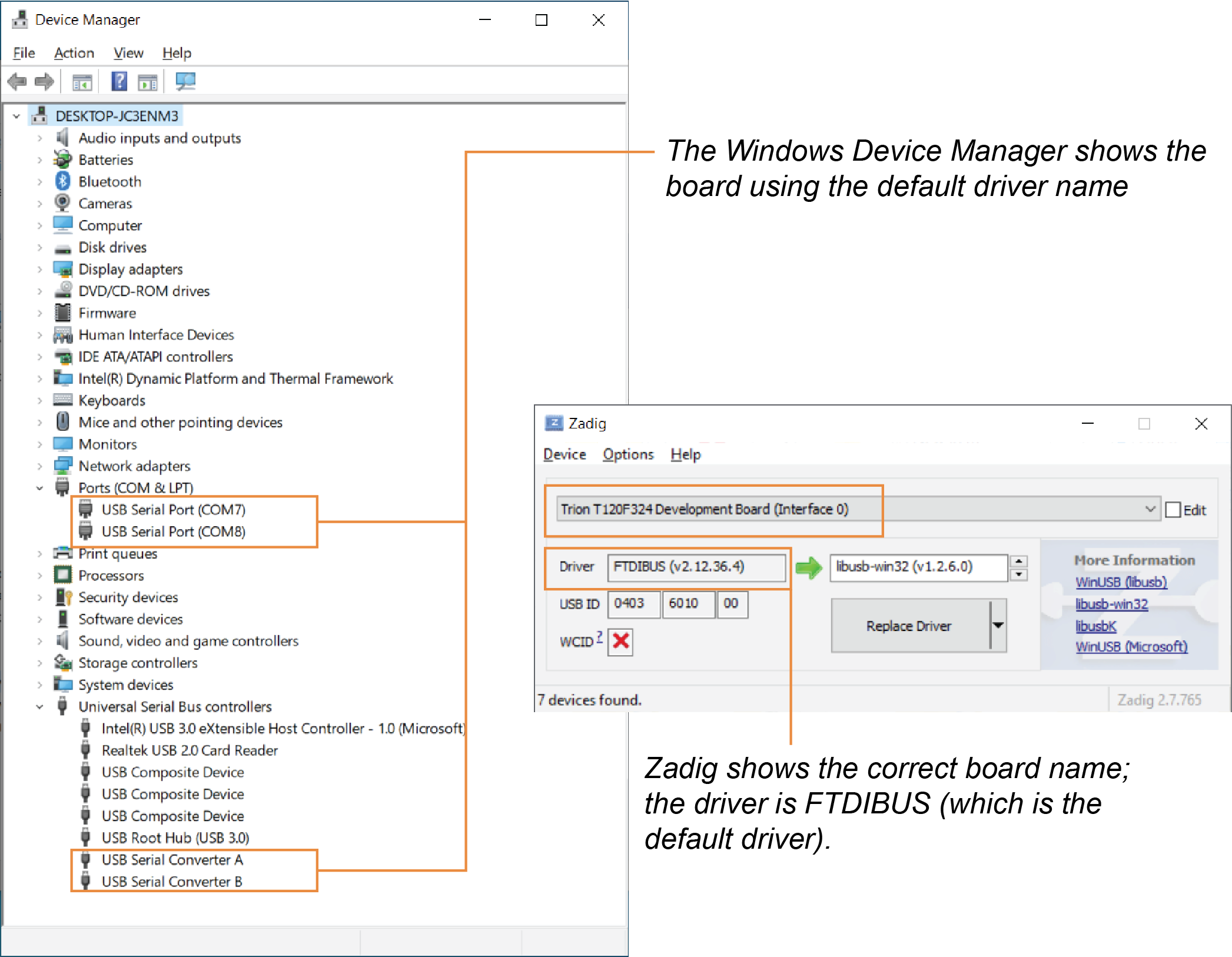
This topic assumes you have already installed the drivers for interface 0 (SPI) and 1 (JTAG) as usual for the previous board. The following example shows the Windows Device Manager and Zadig software when you connect and turn on the Titanium Ti180 J484 Development Board. The other board (in this example the T120 BGA324 board) is turned off.
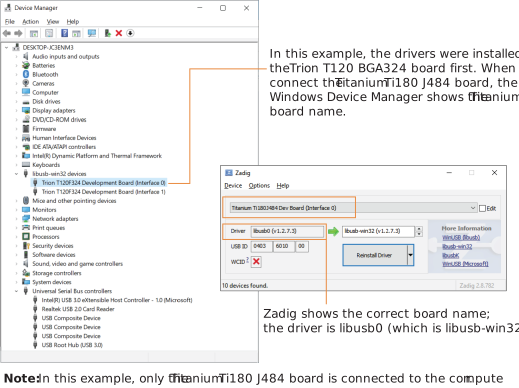
To fix the Interface 0 conflict:
- Connect and turn on the Titanium Ti180 J484 Development Board. Disconnect or turn off your other board.
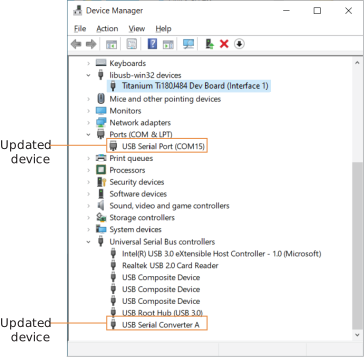
- In the Windows Device Manager, update the driver for Interface 0 to a default.
The Windows Device Manager shows:
- libusb-win32 devices
- <board name> (Interface 1)
- Ports (COM & LPT)
- USB Serial Port (COMn)
- USB Serial Converter n
The Windows Device Manager does not display Titanium Ti180 J484 Development Board (Interface 1).
Xyloni and Titanium Ti60 F225 Development Boards
As shown in an050.html#concept_ek1_pt1_cvb__table_ftdi, the Xyloni and Titanium Ti60 F225 Development Boards have an FT4232 chip. Interfaces 0 - 2 are used for the same purpose, but Interface 3 is different. Therefore, if you have both boards, you will have a conflict for Interface 3.
Xyloni First
If you installed the Xyloni drivers first:
- Connect and turn on the Titanium Ti60 F225 Development Board. Disconnect the Xyloni.
- In the Windows Device Manager, update the driver for Interface 3 to a default.
The Windows Device Manager shows:
- libusb-win32 devices
- Xyloni (Interface 0)
- Xyloni (Interface 1)
- Ports (COM & LPT)
- USB Serial Port (COMn)
- USB Serial Port (COMn+1)
- Universal Serial Bus Controllers
- USB Serial Converter n
- USB Serial Converter n+1
Titanium Ti60 F225 Development Board First
If you installed the Titanium Ti60 F225 Development Board drivers first:
- Connect the Xyloni. Disconnect the Titanium Ti60 F225 Development Board.
- In the Zadig software, install the driver for Interface 3.
The Windows Device Manager shows:
- libusb-win32 devices
- Titanium Ti60 F225 Development Board (Interface 0)
- Titanium Ti60 F225 Development Board (Interface 1)
- Titanium Ti60 F225 Development Board (Interface 3)
- Ports (COM & LPT)
- USB Serial Port (COMn)
- USB Serial Converter n
Install Drivers
This topic provides general driver installation instructions. Each development kit user guide also has instructions for installing drivers. Those instructions describe which interfaces need drivers, but the steps to install the drivers are the same. The following table summarizes the boards and the driver interfaces to install.2
| Board | Install Driver for Interface | |||
|---|---|---|---|---|
| 0 | 1 | 2 | 3 | |
| Trion T20 BGA256 Development Board |  |
|
– | – |
| Trion T20 MIPI Development Board | |
|
– | – |
| Trion T120 BGA324 Development Board | |
|
– | – |
| Trion T120 BGA576 Development Board | |
|
– | – |
| Titanium Ti180 J484 Development Board | No, use default | |
– | – |
| Titanium Ti180 M484 Development Board | No, use default | |
– | – |
| Xyloni Development Board | |
|
No, use default | |
| Titanium Ti60 F225 Development Board | |
|
No, use default | No, use default |
On Windows, you use software from Zadig to install drivers. Download the Zadig software (version 2.7 or later) from zadig.akeo.ie. (You do not need to install it; simply run the downloaded executable.)
To install the driver:

Update Drivers to a Default
About this task
To update a driver to the default driver:
Procedure
Results
Uninstall Drivers
About this task
You may want to uninstall a driver completely. In that case, use the following steps:
Procedure
- Open the Windows Device Manager.
- Right-click the board name under <driver> USB Devices. For example, right-click to uninstall the composite parent driver.
- Choose Uninstall device from the pop-up menu.
- Turn on the Delete the driver software for this device option in the Uninstall Device dialog boxes.
- Click Uninstall.
- For separate interfaces, repeat steps 2-5 for each interface.
- Disconnect the board from your computer and reconnect it again.
- If you still see the board name in the Windows Device Manager, repeat the uninstall process.
Results
The Windows Device Manager updates to show the board under Ports (COM & LPT) and under Universal Serial Bus Controllers.
Troubleshooting
Below are some common questions and issues that cause driver problems.
I installed libusbK drivers for separate interfaces already. Do I really need to uninstall them and re-install with libusb-win32?
The short answer is no—you do not need to re-install the drivers if they are working for you. However, when you plug in a new development board it also uses the libusbK driver. If that works for you, then you can keep using libusbK. If it does not work, Efinix recommends that you uninstall the libusbK drivers; refer to Managing Drivers.
Zadig shows a different driver name than the one I installed (or that Windows automatically installed). Is that correct?
Yes, Zadig shows these driver names:
- The libusb-win32 driver displays as libusb0.
- The default driver shows as FTDIBUS.
In the Programmer, I get the error message "Please install usb driver on Interface that used for SPI Programming"
You get this Programmer error message if you did not install the driver for the SPI interface (Interface 0). You should install the drivers for all interfaces, even if you only want to use JTAG programming.
The Programmer was working fine, but now I get an error message that "A device attached to the system is not functioning"
This message can happen when you remove power to a board (by turning it off or disconnecting it from your computer), turn power back on, and then try to program. Before trying to program with a newly connected board, always click the Refresh USB Targets button next to the USB Target drop-down list.
When you remove power to a board, you will notice that the Programmer still has the board name you last used in the USB Target list. Even though the name is still listed there, when you reconnect the board you need to refresh the Programmer so that it correctly finds the board.
When I plug in my Efinix board I don't see the name in the Windows Device Manager
This situation can happen for 2 reasons:
- You did not install any drivers yet; the Windows Device Manager lists the board under Ports (COM & LPT) and Universal Serial Bus Controllers using a default driver.
- You installed a driver for another Efinix board and that name is displayed instead (see the answer to the next troubleshooting question for details).
When I plug in the T120 F324 board the Windows Device Manager has the wrong board name; I installed drivers for the T20 BGA256 board already
The Windows Device Manager shows the name of the device that was found when you installed the driver—in this case, the T20 BGA256 board. Because the T120 F324 board and the T20 BGA256 boards have the same FTDI chip, and the interfaces are used for the same function, you can use the same driver for both. It does not matter that Windows has the wrong board name. The Efinity software correctly shows the name for the board that you have connected.
- Trion T20BGA256 Development Board (Interface 0)
- Trion T20BGA256 Development Board (Interface 0)
- Trion T20BGA256 Development Board (Interface 1)
- Trion T20BGA256 Development Board (Interface 1)
- Trion T20BGA256 Development Board
- Trion T20BGA256 Development Board
My drivers are installed correctly but I get an error message that "Detected hex file type does not match JTAG chain file's selected device type"
You get this error when you try to program with a bitstream that was compiled for a different device. Before programming, the Programmer checks to make sure that the device name in the bitstream matches the device you are trying to program. If they do not match, you get this error message.
I have a board from another vendor that has an FTDI chip on it. Will it conflict with my Efinix board?
If the other vendor's board has the same FTDI chip as the Efinix board, there may be a conflict if the boards have different interface usage (see FTDI Chips on Efinix Boards). First try to update the driver to a default for the board you are not using. If that does not work, uninstall the driver for the board you are not using.
The other vendor's board has a different FTDI chip, there should not be any driver conflicts.
Revision History
| Date | Version | Description |
|---|---|---|
| July 2023 | 1.1 | Added Ti180J484 development kit. (DOC-1357) |
| October 2022 | 1.0 | Initial release. |