AN 043: Using the 10/100/1000 Mbps TSE MAC with Sapphire SoC on lwIP
Introduction
- Titanium Ti60 F225 Development Board
- Titanium Ti180 M484 Development Board
- Titanium Ti180 J484 Development Board
- Trion T120 BGA324 Development Board
- Trion T120 BGA576 Development Board
The design also includes lwIP application that lets you establish an iPerf server to test the overall bandwidth. lwIP is a small independent implementation of the TCP/IP protocol suite that provides a lightweight TCP/IP stack which is an ideal solution for microcontrollers.

FPGA Support
The example design supports Titanium Ti60 and Ti180 FPGAs.
Resource Utilization and Performance
| FPGA | Logic and Adders | Flip-flops | Memory Blocks | DSP Blocks | fMAX (MHz) | Language | Efinity Version |
|---|---|---|---|---|---|---|---|
| Ti60 F225 C4 | 17,958 | 15,117 | 176 | 4 | TSEMAC: 245 SoC: 289 |
Verilog HDL | 2023.1 |
| Ti180 M484 C4 | 24,224 | 28,669 | 284 | 4 | TSEMAC: 245 SoC: 289 |
Verilog HDL | 2023.1 |
| Ti180 J484 C4 | 24,369 | 28,668 | 284 | 4 | TSEMAC: 233 SoC: 241 |
Verilog HDL | 2023.1 |
| T120 F324 | 15,678 | 14,223 | 204 | 4 | TSEMAC: 134 SoC: 63 |
Verilog HDL | 2023.1 |
| T120 F576 | 15,588 | 14,215 | 204 | 4 | TSEMAC: 134 SoC: 65 |
Verilog HDL | 2023.1 |
Required Hardware and Software
Hardware Requirements
| Example Design | Required Hardware | |
|---|---|---|
| Included in the Development Kit | Self-Provided | |
| Titanium Ti60 F225 |
|
|
| Titanium Ti180 M484 |
|
|
| Titanium Ti180 J484 |
|
|
| Trion T120 BGA324 |
|
|
| Trion T120 BGA576 |
|
|
Software Requirements
- Efinity® software version 2023.1
- Efinity® RISC-V Embedded Software IDE
- iPerf2 network speed test tool (https://iperf.fr)
Functional Description
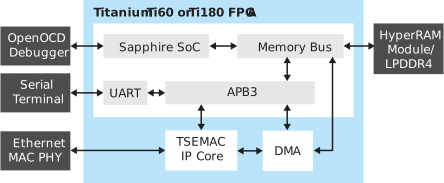
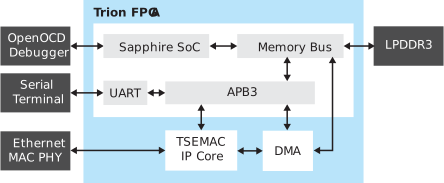
The 10/100/1000 Mbps TSE MAC with Sapphire SoC on lwIP example design combines the Sapphire SoC with a DMA block and TSEMAC IP core. The DMA block has a memory-mapped interface that connects to the SoC's memory bus. A streaming interface connects the DMA block to the TSEMAC IP core, which transfers bulk data from/to the TSEMAC without needing to access the RISC-V processor. This arrangement gives the processor more bandwidth to complete other operations. The TSEMAC IP core transmits or receives Ethernet packets to/ from the host and ensures the data transmission over Ethernet meets the media access rules specified in the 802.3-2008 IEEE standard. The RISC-V processor controls the DMA block and TSEMAC IP core through the APB3 bus.
With the UART peripheral, you can use a terminal to display message output. Messages print when the TSEMAC successfully connects to a host or there is packet activity from the host to the FPGA that is requested by a software application, or vice-versa.
-
Ti60 FPGA uses HyperRAM for the external memory.
-
Ti180 FPGA uses LPDDR4 for the external memory.
RGMII Dynamic Clock Switch (Titanium only)
The 10/100/1000 Mbps TSE MAC with Sapphire SoC on lwIP design example includes an RGMII dynamic clock switch to ensure the interface uses the supported Ethernet speed. The RISC-V detects the PHY chip with auto-negotiation function. Then, the RISC-V sets the clock mux and MAC settings to use either 125 MHz (1000 bps) or 25 MHz (100 bps) / 2.5 MHz (10 bps).
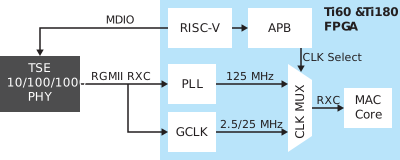
You need to assign a pin accordingly for the dynamic clock switch selection to work:
Before designing a new circuit, review the datasheet for the dedicated pins for corresponding dynamic clock mux. For the dummy clock mux requirement, input 0 must be assigned to the clock source for mux operation. For Ti60 design example, slow speed clock RXC (2.5/25 MHz) is assigned to input 0 of the dynamic clock mux. For Ti180 design example, input 0 is assigned an extra dummy clock signal for the mux operation.
GPIOR_P_11_CLK8_P for GCLK in and
GPIOR_P_19_PLLIN0 for PLL in. Both are accessible through the P1
header on the Titanium Ti60 F225 Development Board.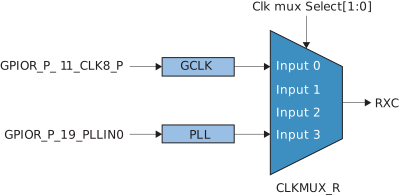
GPIOR_P_27_CLK8_P for GCLK in and
GPIOR_P_45_PLLIN0 for PLL in. Both are accessible through the P1
header on the Titanium Ti180 M484 Development Board.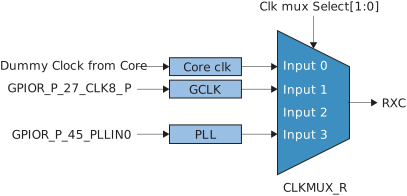
Set Up the Hardware
About this task
Titanium Ti60 F225 Development Board
About this task

Procedure
Titanium Ti180 M484 and J484 Development Board
About this task


Procedure
Trion T120 BGA324 Development Board
About this task

Procedure
- If you have not already done so, attach standoffs to the board.
- Connect a USB cable to the board and to your computer.
- Connect an Ethernet cable to the RJ-45 receptacle on the board and to your computer.
- Connect a USB-to-UART module to the J12 header. See Set Up a USB-to-UART Module.
- On header J10, connect pins 2 - 3 with a jumper (default) to use the on-board oscillator.
- Leave the jumper on J2 at the defaults (connecting pins 1 - 2). On J3, connect pins 1 - 2.
- Connect the 12 V power supply to the board connector and to a power source.
- Turn on the board.
Set Up a USB-to-UART Module
About this task
The Trion T120 BGA324 Development Board does not have a USB-to-UART converter, therefore, you need to use a separate USB-to-UART converter module. A number of modules are available from various vendors; any USB-to-UART module should work.

Procedure
-
Connect the UART module to the PMOD port J12.
- RX—GPIOT_RXP20, which is pin 1 on PMOD J12
- TX—GPIOT_RXN20, which is pin 7 on PMOD J12
- Ground—Use ground pin 5 or 11 on PMOD J12.
- Plug the UART module into a USB port on your computer. The driver should install automatically if needed.
Trion T120 BGA576 Development Board
About this task

Procedure
Set Up a USB-to-UART Module
About this task
The Trion T120 BGA576 Development Board does not have a USB-to-UART converter, therefore, you need to use a separate USB-to-UART converter module. A number of modules are available from various vendors; any USB-to-UART module should work.

Procedure
-
Connect the UART module to the PMOD D port J16.
- RX—GPIOT_RXP24, which is pin 1 on PMOD D J16
- TX—GPIOT_RXN24, which is pin 7 on PMOD D J16
- Ground—Use ground pin 5 or 11 on PMOD D J16
- Plug the UART module into a USB port on your computer. The driver should install automatically if needed.
Finding the COM Port
Finding the COM Port in Windows
- Open Windows Device Manager by typing Device Manager in the Windows search box.
- Expand Ports(COM & LPT) to find out UART module assigned port number. The port number is listed as USB Serial Port (COMn) where nis the assigned port number. Note the COM port number.
Finding the COM Port in Linux
- Open the terminal and enter the following
command:
dmesg | grep ttyUSB - The terminal displays a series of messages about the attached
devices.
usb 3-3: FTDI USB Serial Device converter now attached to ttyUSB0
usb 3-2: FTDI USB Serial Device converter now attached to ttyUSB1
usb 3-2: FTDI USB Serial Device converter now attached to ttyUSB2
Set Your Computer's IP Address
Make these settings to your computer's Ethernet network adapter:
- Set the IP address for your computer to 192.168.31.222.
- Set the default gateway to 192.168.31.1.
- Set the Subnet mask to 255.255.255.0.
- Set the DNS server to 8.8.8.8.
By default, the lwIP has an FPGA IP address of 192.168.31.55, a gateway of 192.168.31.1, and expects your computer address to be 192.168.31.222. You can change these defaults (as well as the default MAC address) in the mac.h file in the src directory in the /riscv-tsemac-lwip/src directory. If you change these defaults, you need to re-build the project in RISC-V IDE and download the new .elf file to the board.
Download the Files
About this task
The 10/100/1000 Mbps TSE MAC with Sapphire SoC on lwIP example design includes a hardware project and software example code.
Procedure
Example Design Files
- The FPGA bitstream and the application binary together with a combined bitstream
- The FPGA bitstream and the application binary separately with two bitstreams

| File or Directory | Description |
|---|---|
| rtl\ | Folder containing common RTL files for all bsp projects. |
| bsp\<board name>\<board name>-lwip.xml | Example design project file. |
| bsp\<board name>\embedded_sw\soc0\ | RISC-V SoC workspace. |
| bsp\<board name>\embedded_sw\soc0\software\standalone\lwip_iperf\ | RISC-V SoC example design project files. |
| bsp\<board name>\embedded_sw\soc0\software\standalone\Bootloader | RISC-V SoC bootloader project files. |
| bsp\<board name>\Bitstream\FlashLoader\jtag_spi_flash_loader_dual.bit | Pre-compiled JTAG Bridge image file (TI180J/M484 Only) |
| bsp\<board name>\Bitstream\RestoreBitstream\Combine_<board name>_lwip.hex | Combined file consists of the FPGA bitstream and RISC-V SoC
application binary. Program into the SPI flash using SPI active
configuration mode. |
| bsp\<board name>\Bitstream\RestroeBitstream\<board name>-lwip.hex | FPGA bitstream only. Program this file into the SPI flash using SPI active configuration mode. |
| bsp\<board name>\Bitstream\RestroeBitstream\<board name>-lwip.bin | FPGA bitstream only. Use this file to configure the FPGA using JTAG mode configuration. |
| bsp\<board name>\Bitstream\SocFW\<board name>-lwip.bin | Pre-compiled example design application binary file to program into SPI flash using OpenOCD Debugger. |
| bsp\<board name>\Bitstream\SocFW\<board name>-lwip.elf | Pre-compiled example design application binary file to run using OpenOCD Debugger. |
| bsp\<board name>\Bitstream\SocFW\<board name>-lwip.hex | RISC-V SoC application binary only. Program into the SPI flash
using SPI active configuration mode. |
Program the Board
About this task
The development boards ship pre-loaded with an example design. To use the 10/100/1000 Mbps TSE MAC with Sapphire SoC on lwIP example design, you must program the design into the board. To program the board with the combined bitstream file (/Bitstream/RestoreBitstream/Combine_<board_name>.hex):
Procedure
- Open the project file (.xml) according to the board you are using in the Efinity® software and review it.
-
In the Efinity® Programmer, select the following
programming mode depending on the development board you use:
Development Board Mode Ti180 M484 and Ti1810 J484 SPI Active using JTAG Bridge Programming Mode All others SPI Active Programming Mode - Under Image, click the Select Image File button and select Combine_<board_name>_lwip.hex.
- Ti180 M484 and Ti1810 J484 only: Under Auto configure JTAG Bridge Image, click the Select Image File button and select jtag_spi_flash_loader_ti180j484.bit file.
-
Ensure that the Starting Flash Address is set to
0x000000. - Click the Start Program button.
- Press the CRESET button on the development board to reset the FPGA. This reset ensures that the DDR memory initialization happens before the user application runs.
Results
| Development Board | LED | Description |
|---|---|---|
| Titanium Ti60 F225 Development Board | D16 blinking green | Ethernet RX clock received |
| D17 turned on blue | HyperRAM calibration passed | |
| D18 blinking green | PLL locks with RGMII RXC clock | |
| D22 turned on green | Power good | |
| D15 turned on green | FPGA configuration done | |
| D20 turned on red | FPGA configuration error | |
| Titanium Ti180 M484 and J484 Development Boards | LED11, LED12, LED13 turned on | Power good |
| LED1 turned on | FPGA configuration done | |
| LED7 turned on | DDR configuration done | |
| LED6 turned on | DDR memory test done | |
| LED2 blinking | Data received | |
| LED3 blinking | Data transmitted | |
| LED4 blinking | Ethernet RX clock received | |
| LED5 blinking | Ethernet TX clock received | |
| Trion T120 BGA324 Development Board | D7 (User_LED0) blinking | Ethernet RX clock received |
| D1, D2, D3, D4 turned on | Power Good | |
| D6 turned on | FPGA configuration done | |
| Trion T120 BGA576 Development Board | D7 (User_LED0) blinking | Ethernet RX clock received |
| D1, D2, D3, D4 turned on | Power good | |
| D6 turned on | FPGA configuration done |
Using the Software Examples
The example comes with all of the standard Sapphire software in the lwip_iperf directory. You can build the software yourself or you can use the pre-compiled .elf files.
Using this Example with the RISC-V IDE
- Install the Efinity RISC-V Embedded Software IDE
- Launching the Efinity RISC-V Embedded Software IDE
- Import Sample Projects
- Build
- Launch the Debug Script
- Open a Terminal
iPerf2 Server with lwIP and TCP Stack
This application shows how lwIP and a TCP stack TCP function with the TSEMAC IP core. The iPerf2 tool lets you actively measure the maximum achievable bandwidth on IP networks. You can tune parameters such as timing, buffers, and protocols. With this application you use the iPerf2 client to test the speed with the FPGA's iPerf2 server.
- In Efinity RISC-V IDE, run the application.
- Click the Resume button or press F8 to resume code operation.
- Go to your serial terminal. You should see the following messages display:
PHY Init...
Waiting Link Up...
Linked Up...
iperf server up
==========================================
======lwIP Raw Mode Iperf TCP Server======
==========================================
======IP:             192.168.31.55
======Netmask:        255.255.255.0
======Gateway:        192.168.31.1
======Link Speed:     1000 Mbps
==========================================
Note: If the Ethernet does not link up, check that you have set up the IP address and other network settings for the correct network adapter. - Open a second terminal or command prompt.
- Change to the directory has the iPerf2 executable.
- Type the command:
.\iperf.exe -c 192.168.31.55 -i 1
You should see output similar to the following in the terminal:
---------------------------------------------------------
Client connecting to 192.168.31.55, TCP port 5001
TCP window size: 136 KByte (default)
---------------------------------------------------------
[  3] local 192.168.31.123 port 47110 connected with 192.168.31.55 port 5001
[ ID] Interval        Transfer        Bandwidth
[  3] 0.0- 1.0 sec    8.62 MBytes     72.4 Mbits/sec
[  3] 1.0- 2.0 sec    8.38 MBytes     70.3 Mbits/sec
[  3] 2.0- 3.0 sec    8.50 MBytes     71.3 Mbits/sec
[  3] 3.0- 4.0 sec    8.38 MBytes     70.3 Mbits/sec
[  3] 4.0- 5.0 sec    8.50 MBytes     71.3 Mbits/sec
...
Revision History
| Date | Version | Description |
|---|---|---|
| March 2024 | 1.3 | Updated figure and changed title from Sapphire SoC Peripherals to Titanium
Sapphire SoC Peripherals. (DOC-1671) Added
in new figure Trion Sapphire SoC
Peripherals. |
| September 2023 | 1.2 | Added support for Ti180 J484, T120 BGA324, and T120 BGA576 Development Boards. (DOC-1438) |
| March 2023 | 1.1 | Added information for Ti180 M484. |
| February 2023 | 1.0 | Initial release. |