AN 062: Example Design: Video Streaming Over 10 Gigabit Ethernet
Introduction
This example design demonstrates video streaming from the Titanium Ti375 N1156 Development Board to a Windows- or Linux-based computer over 10 Gigabit Ethernet. The example includes a Python program that receives UDP packets from the Titanium Ti375 N1156 Development Board and displays them in a GUI window. This GUI includes various controls that, when set, cause the Python application return the UDP packets to the Titanium Ti375 N1156 Development Board to update the values.
Hardware Requirements
The Titanium Ti375 N1156 Development Kit already includes:
- Titanium Ti375 N1156 Development Board preloaded with a demonstration design
- USB Type-C to Type-A cable
- 12 V, 6.25 A universal power adapter with 5.5 mm DC power converter
- Cooling fan
- Thermal pad
- Jumpers
- 4 standoffs
You will also need the following additional hardware for this demonstration:
- Windows- or Linux-based computer with a 10 gigabit Ethernet SFP+ port
- Dual Raspberry Pi Camera Connector Daughter Card
- Raspberry Pi v3 camera module
- 2 × SFP+ optical modules (10 Gigabit each)
- Fiber-optic cable
- 15-pin flat cable
Example Design
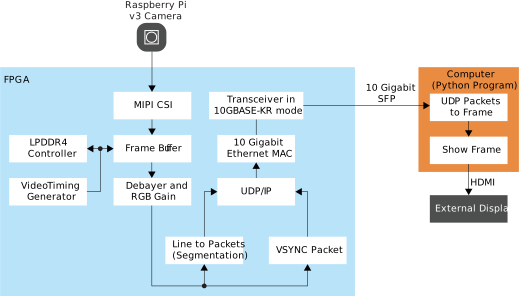
The block diagram below shows the data flow in the example design. All processing and network stacks are implemented in RTL to ensure maximum throughput. There are two types of packets: pixel data and vertical sync. Pixel data is sent to the computer line by line. Any data packets larger the maximum value defined by the user are divided into smaller packets. Vertical sync packets tell the computer when a frame has ended. The output video is in uncompressed RGB888 format.
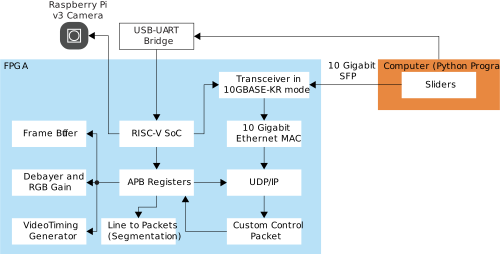
The example design includes a RISC-V Sapphire SoC. With the SoC, you can configure the hardware and change various parameters/settings, such as the IP address or video timing, without the need to recompile the FPGA design. The following diagram shows the interconnections between the SoC and the overall design. In addition, the GUI window includes several sliders that can be used to control some of the parameters of the design.
Setting Up the Hardware
About this task
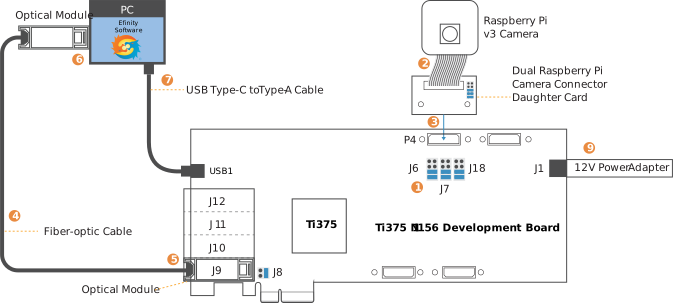
Follow these steps to setup your hardware for the demonstration design:
Procedure
Results
Running the Example Design
Follow these steps to run the example design. These steps assume that you know how to use the Efinity Programmer to download a bitsteam to the Titanium Ti375 N1156 Development Board. For more advice on how to use the Efinity Programmer, see the Efinity Programmer User Guide.
- This example requires the Efinity software v2024.2 (or later). Efinity patches are available via the Efinix Support Center.
- Download the example design files from the Efinix Support Center, then extract them.
- Download the bitstream file,
prebuilt/videostream_combined.hex, to your Titanium Ti375 N1156 Development Board using the Programmer.
- Choose SPI Active via JTAG bridge (new) mode.
- Set the Starting Flash Address to 0x0.
- Change the 10G network interface of your computer to manual mode, then configure
it as follows:
- IP address: 172.16.100.10
- Netmask: 255.255.255.0
- Gateway: leave empty
Notice: For advice on how to change your network interface, see Network Configuration. - Enable Jumbo Packet support or set the MTU of your computer’s network interface
to 9000. The example design hardcodes the MTU to 9000 to maximize performance.
You can override this in the RISC-V application.
- If using Windows:
- Open the Device Manager.
- Find your 10G network controller in Network Adapters.
- Right click, then click Properties.
- In the Advanced tab, click Jumbo Packet.
- Set the Value to 9014 Bytes.
Figure 4. Network Adapter Properties in Windows Device Manager 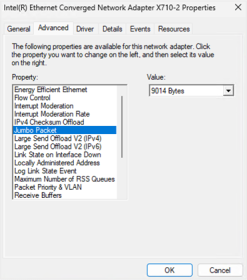
- If using Linux:
- Use the command
sudo ip link set mtu 9000 <INTERFACE> - Replace <interface> with the name of the network
connected to the Titanium Ti375 N1156 Development Board. See
the following example:
$ sudo ip link set mtu 9000 enp1s0f1np1
$ ip a | grep enp1s0f1np1
4: enpls0f1np1: <BROADCAST,MULTICAST,UP,LOWER_UP> mtu 9000 qdisc mq state UP group default quen 1000 inet 172.168.100.10/24 scope global enp1s0f1np1
$ ▋
- Use the command
Note: If you need to override your design's hardcoded MTU, you will need to modify the source code per the following steps:- Navigate to
<project>/sw/sapphire/software/standalone/app/src/apb3reg.c. - Open the function
reg_init(). - Modify the value of the register
REG_MSS. - Recompile the application.
- Load the application into the development board.
Notice: For further guidence on programing and recompiling, see the Sapphire RISC-V SoC Hardware and Software User Guide. - If using Windows:
- If you are using Linux, use the command
sudo sysctl -w
                        net.core.rmem_max=16777216
to set the maximum socket receive buffer size to 16 MB. This setting will reset to the default after rebooting your computer. - If your computer is behind a firewall:
- Create an inbound rule to open UDP port 1235.
- Create an outbound rule to open UDP port 1236.
Note: If you are using Windows, an error alert Windows Defender Firewall has blocked some features of this app may pop-up when you run the Python program for the first time. Click Allow access so that you do not have to modify the firewall rules manually. - Power cycle the Titanium Ti375 N1156 Development Board. The LEDs on the
Titanium Ti375 N1156 Development Board light up to indicate the board's
status:
Table 2. LED Light Up Sequence LED Status LED7 turned on Power good. LED8 turned on FPGA configuration done. LED1 turned on LPDDR4 configuration done. LED2 blinking The Titanium Ti375 N1156 Development Boardis receiving video frames from the camera module. LED3 blinking The frame buffer is outputting video frames. LED4 blinking MAC is sending Ethernet frames to the transceiver. LED5 blinking The Titanium Ti375 N1156 Development Board is receiving Ethernet frames. - Open a command prompt (Windows) or terminal (Linux).
- Change directory to scripts.
- Use command
python -m pip install -r requirements.txtto install dependencies.- Windows: If you are using the version of Python that comes
bundled with the Efinity software, use the following
commands:
<PATH_OF_EFINITY>/bin/setup.bat python3 -m pip install -r requirements.txt - Linux: If you are using the version of Python that comes bundled with the Efinity software, use the following commands:
source <PATH_OF_EFINITY>/bin/setup.sh
python3 -m pip install -r requirements.txt
- Windows: If you are using the version of Python that comes
bundled with the Efinity software, use the following
commands:
- Use command
python showVideo.pyto run the Python program. It will create a window to display the video being streamed from the Titanium Ti375 N1156 Development Board. The default resolution and frame rate is 1920×1080 at 30 fps.Figure 5. Example Streaming Video  There are four sliders in the top left corner of the window, as shown above. From top to bottom, they control digital gain, red gain, green gain, and blue gain.
 - The Python program also prints the current frame rate every second at the command
prompt (Windows) or terminal (Linux).
$ python showVideo.py pygame 2.6.0 (SDL 2.28.4, Python 3.10.14) Hello fron the pygame community. https://www.pygane.org (contribute.html) socket buffer size: 33554432 interval of a frame: 805.9123ms. Frame rate: 1.24fps pygame surface size: (1080, 1920) interval of a frame: 33.3653ms. Frame rate: 29.97fps interval of a frame: 33.3648ms. Frame rate: 29.97fps interval of a frame: 33.3649ms. Frame rate: 29.97fps interval of a frame: 33.3649ms. Frame rate: 29.97fps interval of a frame: 33.3651ms. Frame rate: 29.97fps interval of a frame: 33.3649ms. Frame rate: 29.97fps interval of a frame: 33.3652ms. Frame rate: 29.97fps interval of a frame: 33.3648ms. Frame rate: 29.97fps interval of a frame: 33.3645ms. Frame rate: 29.97fps interval of a frame: 33.3649ms. Frame rate: 29.97fps interval of a frame: 33.3648ms. Frame rate: 29.97fps interval of a frame: 33.3650ms. Frame rate: 29.97fps interval of a frame: 33.3651ms. Frame rate: 29.97fps interval of a frame: 33.3652ms. Frame rate: 29.97fps interval of a frame: 33.3647ms. Frame rate: 29.97fps interval of a frame: 33.3647ms. Frame rate: 29.97fps interval of a frame: 33.3651ms. Frame rate: 29.97fps - To change the resolution and frame rate:
- Open terminal software on the computer. You can use any Windows or Linux terminal application, such as PuTTy, Tera Term, Minicom, and others.
- Select the available USB serial COM port and set the following:
- Baud rate: 115200
- Data: 8-bit
- Parity bit: No
- Stop bit: 1
- There are four available resolution and frame rate settings. You can type
0,1,2, or3to choose the one you want to try. Note that a higher resolution and frame rate will consume more bandwidth and CPU resources. Packets loss may occur on some computers.initialized! Camera initialized user timer initialized! plic initialized Interrupt initialized ---------------------------- Choose resolution and frame rate: 0: 1920×1080 @ 30FPS 1: 1920×1080 @ 60FPS 2: 3840×2160 @ 24FPS 3: 3840×2160 @ 30FPS
Network Configuration
This section explains how to set your computer's network interface manually.
Network Configuration in Linux
Network Configuration Method
- If using a network configuration file to configure your network, open the
/etc/network/interfacesfile with root permission. - Add the following configuration:
auto
                                <interface>
iface <interface> inet staticaddress 172.16.100.10/24mtu 9000Example:auto enp1s0f1np1 iface enp1s0f1np1 inet static address 172.16.100.10/24 mtu 9000
Network Manager GUI Method
The following steps are for the Ubuntu 22.04 distribution.
- Click the
 symbol in the top-right
corner.
symbol in the top-right
corner. - Choose the 10G network name from the Wired Connected
menu. The Wired dialog box opens with the network settings.
Figure 6. Network Configuration in Ubuntu 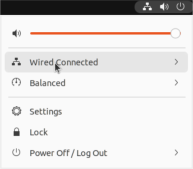
- In the IPv4 tab, change the IPv4 method to Manual.
- Set the IP address and netmask per the example below:
Figure 7. IPv4 Manual Configuration in Ubuntu 
Network Configuration in Windows
- Right-click on the network icon
 in the bottom-right corner, and click
Network & Internet Settings.
in the bottom-right corner, and click
Network & Internet Settings. - Select Ethernet from the menu.
- Click Edit. The Edit IP
settings dialog box opens.
Figure 8. Edit Ethernet Settings 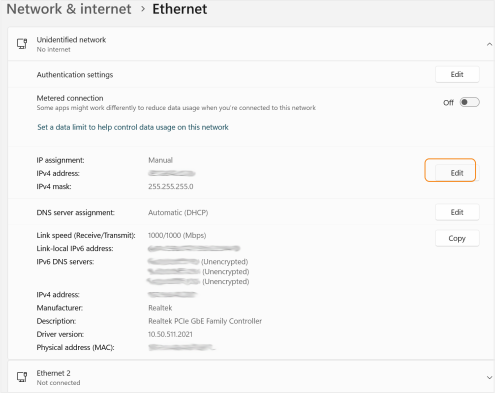
- Change the settings as indicated:
- IP address: 172.16.100.10
- Netmask: 255.255.255.0
- Gateway: leave empty
Figure 9. Edit IP Settings 
- Click Save.
- Right-click on the network icon in the bottom-right corner, then click
Network & Internet Settings.
- Click Change Adapter Options.
- Find the 10G network device. Right click the 10G network name. From the pop-up menu, choose Properties.
- Choose Internet Protocol Version 4 (TCP/IPv4).
- Click Properties.
Figure 10. Windows 10 IPv4 Properties 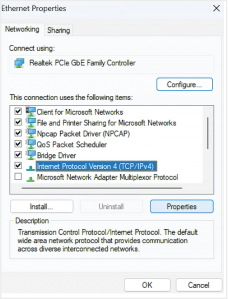
- Change the settings as indicated:
Figure 11. Windows 10 IP Address Settings 
- Click OK.
Restoring the Demonstration Design
After you have used the board for other designs, you may want to go back to the original pre-loaded example design. The preloaded example design project file is available in the Titanium Ti375 N1156 Development Board Demonstration Design page. To restore the example design, you need to program the board's SPI flash device with the Ti375 FPGA's example design bitstream.
The example design zip file includes a bitstream file to get you started quickly. Download it to the board using these steps:
- Download the file video_streaming_10g_demo_v1.2.zip from the Support Center.
- Open the project videostream.xml in the Efinity software. The project is located in the fpga/Ti375N1156-DK directory.
- Connect the Titanium Ti375 N1156 Development Board to your computer using a USB cable.
- Go to Efinity Programmer to download the bitstream file,
prebuilt/videostream_combined.hex, to your
board using the SPI Active using JTAG
Bridge
mode. Set the Starting Flash Address to
0x000000.
Revision History
| Date | Version | Description |
|---|---|---|
| December 2024 | 1.1 | Updated Efinity requirements in line with v1.3 demonstration files. |
| November 2024 | 1.0 | Initial release. |