Debug - Multiple Cores
About this task
By default, the OpenOCD debugger always targets the first core, core 0, when debugging. If your SoC has multiple cores, you can do standalone debugging with a core other than core 0. This debug method uses the openocdServer debug launch scripts, which are available in the software/standalone/openocdServer directory. The general procedure is:
Procedure
- Create an SoC with more than 1 core.
- Create a new project in Eclipse for your software code.
- Create a new project for the openocdServer files.
-
Start the OpenOCD server.
- Right-click .
- Choose .
-
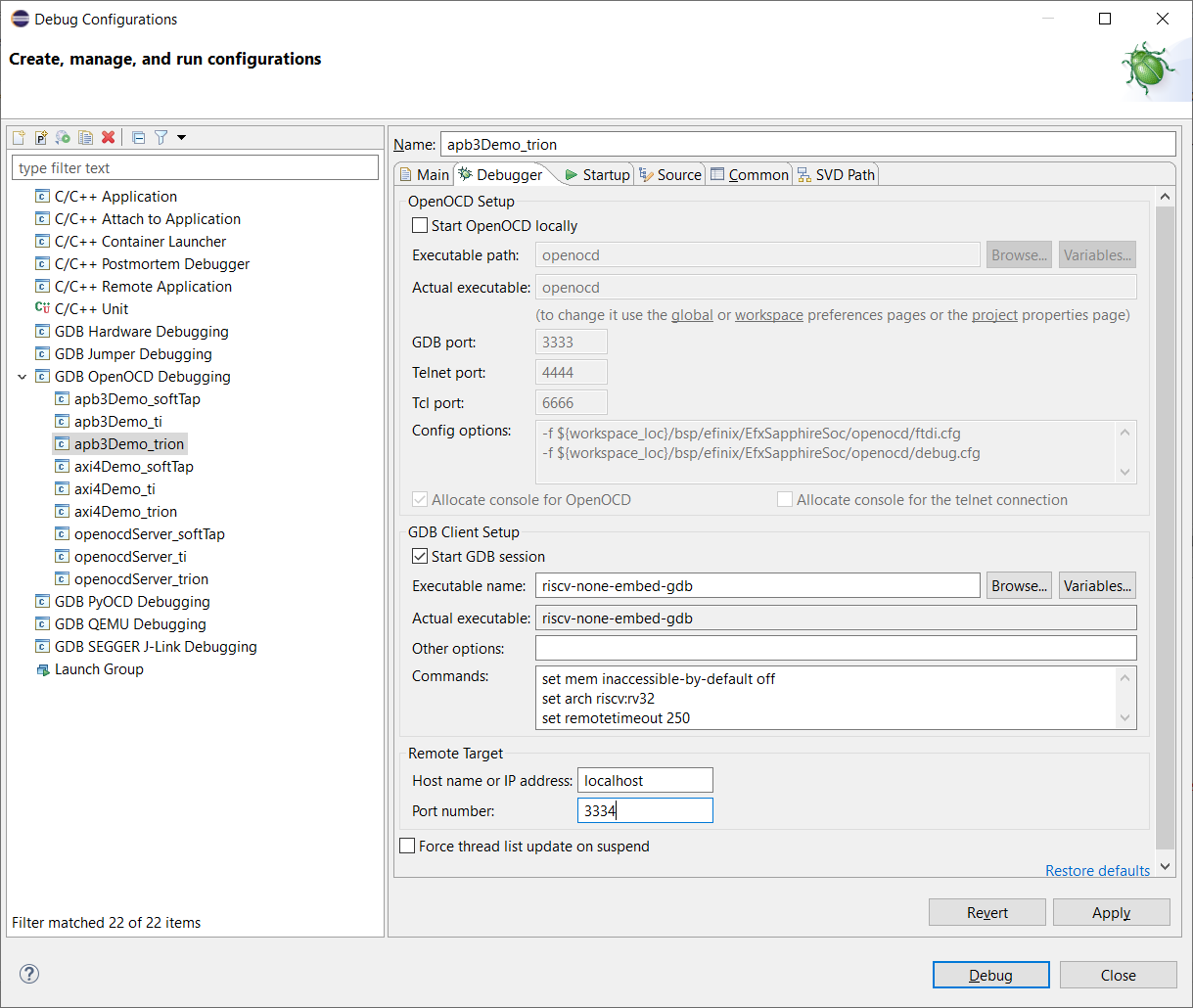
Modify the debug configuration for your application to use the OpenOCD
server:
- Click Debug. Eclipse enters debug mode targeting the CPU that you specified with the port number.
Results