Set Up a USB-to-UART Module
The Trion® T120 BGA576 Development Board does not have a USB-to-UART converter, therefore, you need to use a separate USB-to-UART converter module. A number of modules are available from various vendors; any USB-to-UART module should work.
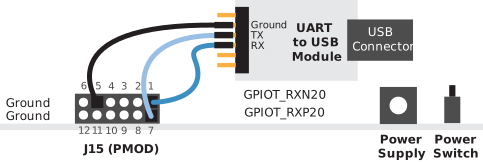
- Connect the UART module to the PMOD port J15
- RX—GPIOT_RXP20, which is pin 1 on PMOD J15
- TX—GPIOT_RXN20, which is pin 7 on PMOD J15
- Ground—Use ground pin 5 or 11 on PMOD J15.
- Plug the UART module into a USB port on your computer. The driver should install automatically if needed.
Finding the COM Port (Windows)
- Type Device Manager in the Windows search box.
- Expand Ports (COM & LPT) to find out which COM port Windows assigned to the UART module; it is listed as USB Serial Port (COMn) where n is the assigned port number. Note the COM number.
Finding the COM Port (Linux)
In a terminal, type the
command:
dmesg | grep ttyUSB usb <number>: <adapter> now attached to ttyUSB<number>There are many USB-to-UART converter modules on the market. Some use an FTDI chip
which displays a message similar
to:
usb 3-3: FTDI USB Serial Device converter now attached to ttyUSB0However, the Trion® T120 BGA576 Development Board also has an FTDI chip and gives the
same message. So if you have both the UART module and the board attached at the same
time, you may receive three messages similar
to:
usb 3-3: FTDI USB Serial Device converter now attached to ttyUSB0
usb 3-2: FTDI USB Serial Device converter now attached to ttyUSB1
usb 3-2: FTDI USB Serial Device converter now attached to ttyUSB2usb 3-2) are the
development board and the first line (usb 3-3) is the UART
module.