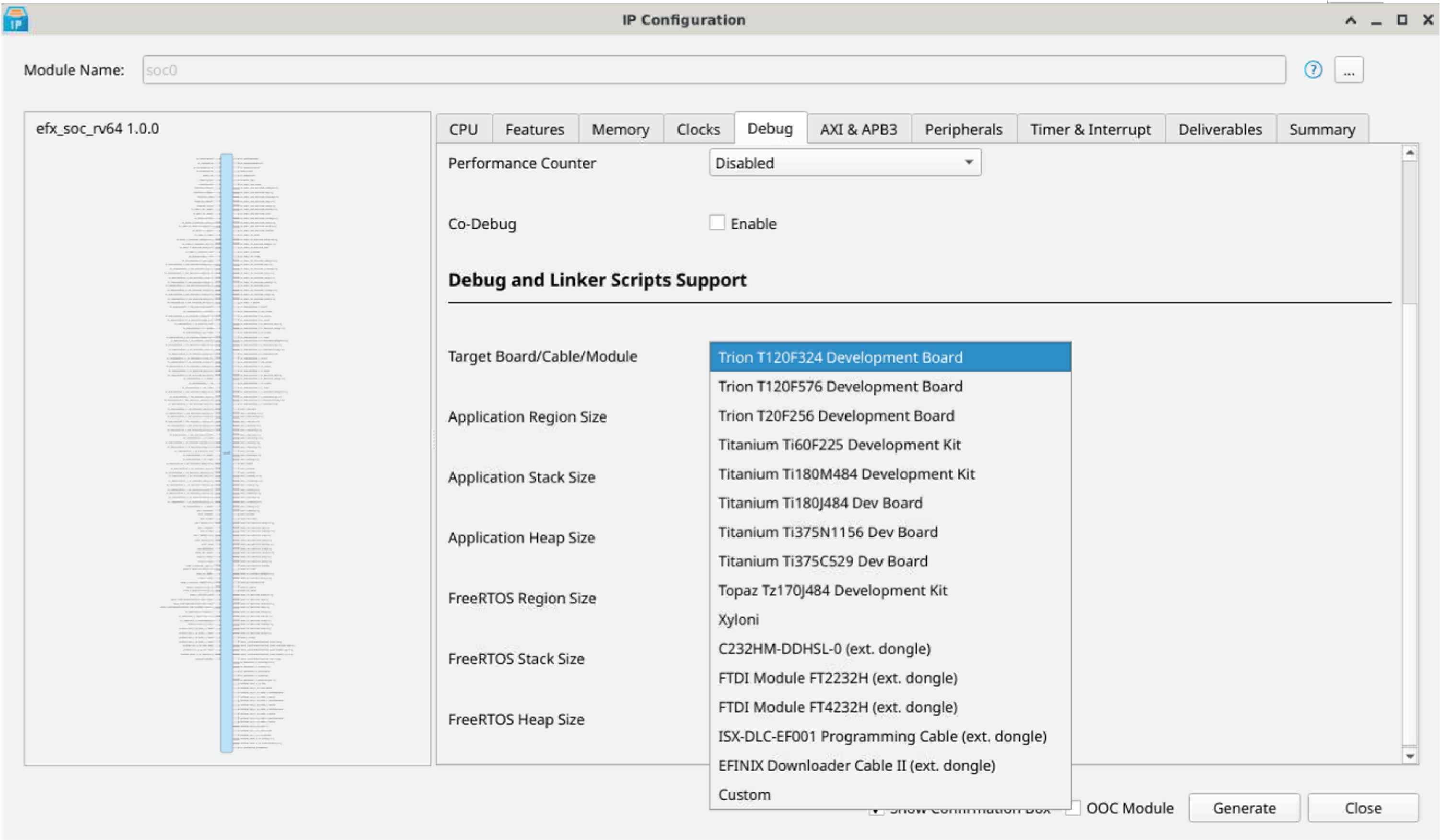
Target another Efinix Board
The Sapphire RV64 SoC BSP includes FTDI configuration files that specify the FTDI device VID and PID and board description for Efinix development boards.
When you configure the SoC, you can choose which Efinix board to target with the option. To target another board, change this option and regenerates the SoC files.
| File | Use for |
|---|---|
| ftdi.cfg | development boards |
| ftdi_ti.cfg | Titanium development boards |
| ftdi_tz.cfg | Topaz development boards |
If you do not want to regenerate the SoC, you can also change the target Efinix board manually by editing the .cfg file. However, if you want to target your own board, refer to Target Your Own Board because the Efinix drivers specifically target the FTDI chips used on Efinix boards, and your board will probably not have that chip.
- Open the Efinity® Programmer.
- Click the Refresh USB Targets button to display the board name in the USB Target drop-down list.
- Make note of the board name.
- In a text editor, open the ftdi.cfg, ftdi_ti.cfg, or ftdi_tz.cfg file in the embedded_sw/<SoC module>/bsp/efinix/EfxSapphireSocRV64/openocd directory.
- Change the
ftdi_device_descsetting to match the board name. For example, use this code to change the name from Trion T120F576 Development Board to Trion T120F324 Development Board:interface ftdi ftdi_device_desc "Trion T120F324 Development Board" #ftdi_device_desc "Trion T120F576 Development Board" ftdi_vid_pid 0x0403 0x6010Alternatively, you can select from the GUI, then regenerate the SoC. Refer to Figure 1.
- Save the file.
- Debug as usual in OpenOCD.