Converting a User Binary to Raw Hex Format (Efinity Programmer)
The standard .hex files generated directly from user applications via the Efinity RISC-V Embedded Software IDE (such as fpuDemo.hex) are not compatible with the Efinity Programmer, as shown in the following figure.
To resolve this, you must convert your application's .bin file into a compatible .hex file using the Combine Multiple Image Files tool within the Efinity Programmer. This compatible .hex file allows the programmer to write to the flash memory successfully. Once programmed, the application should boot and run correctly from the flash.
smpDemo.bin in Efinity RISC-V Embedded
Software IDE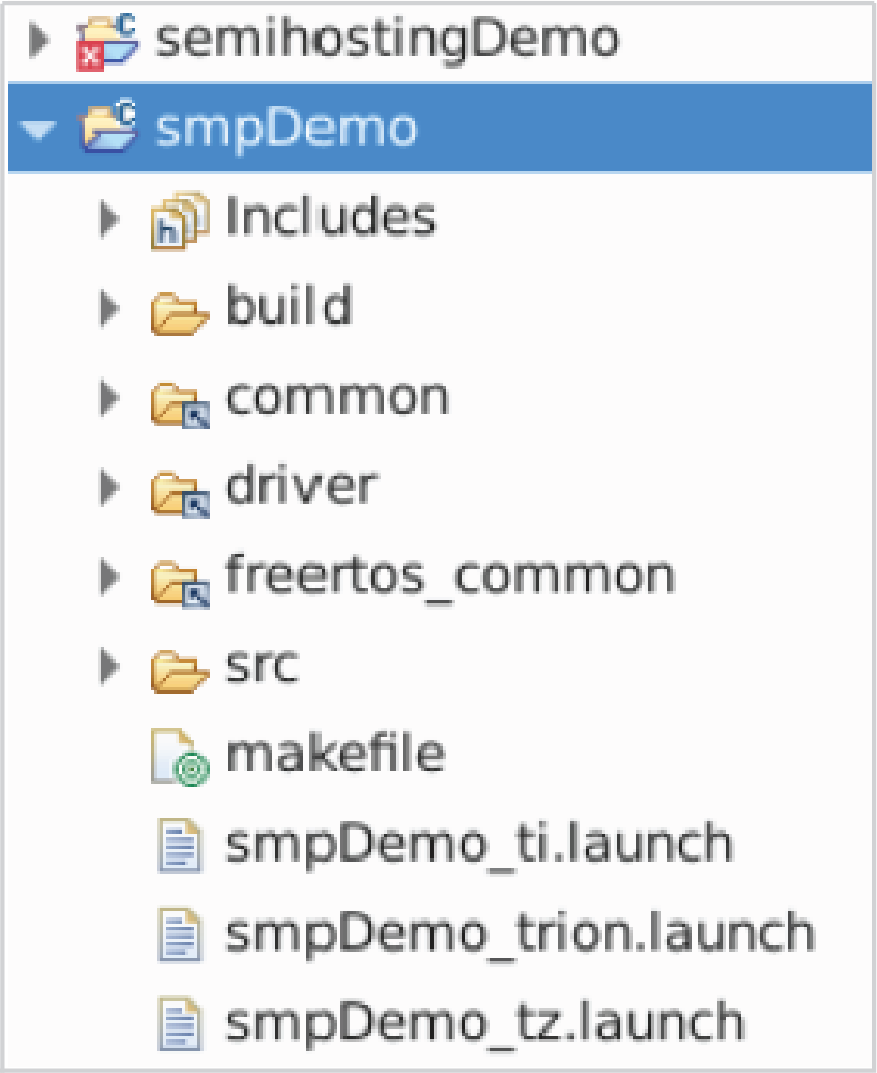
- Open the Efinity Programmer.
- Click the Combine Multiple Image Files button.
- Choose .
- Enter a name for the combined file in Output File.
- Click the Add Image button. The Open Image File dialog box opens.
- Browse to the smpDemo.bin file, select it, and click Open.
- Specify the Flash Address for the smpDemo as 0x0:
Figure 2. Combining Multiple Image Files 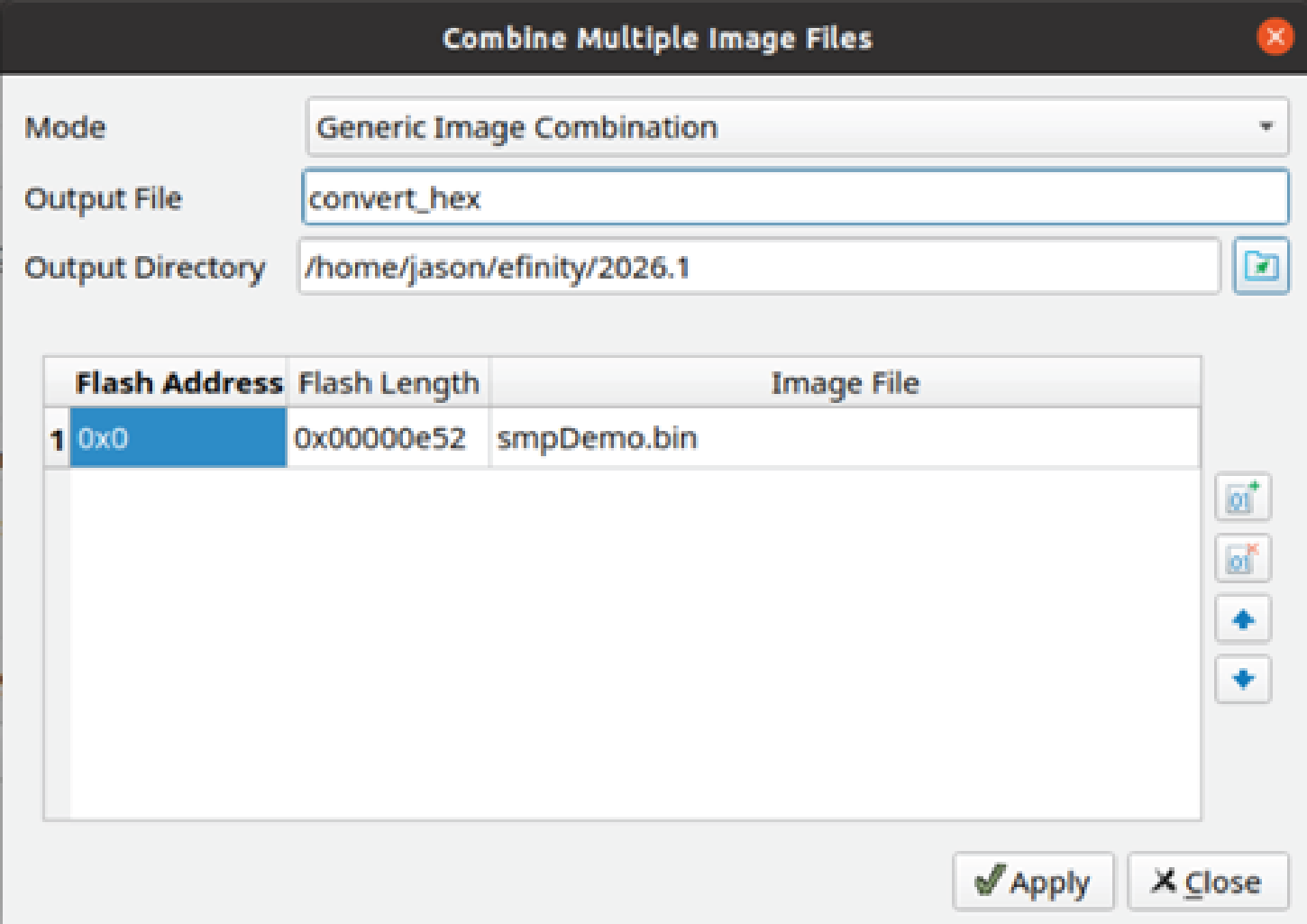
- Click Apply. The software creates the .bin to .hex file in the specified Output Directory (the default is the project outflow directory).
To utilize the generated raw hex format and allow the default bootloader to fetch the
application from the SPI flash:
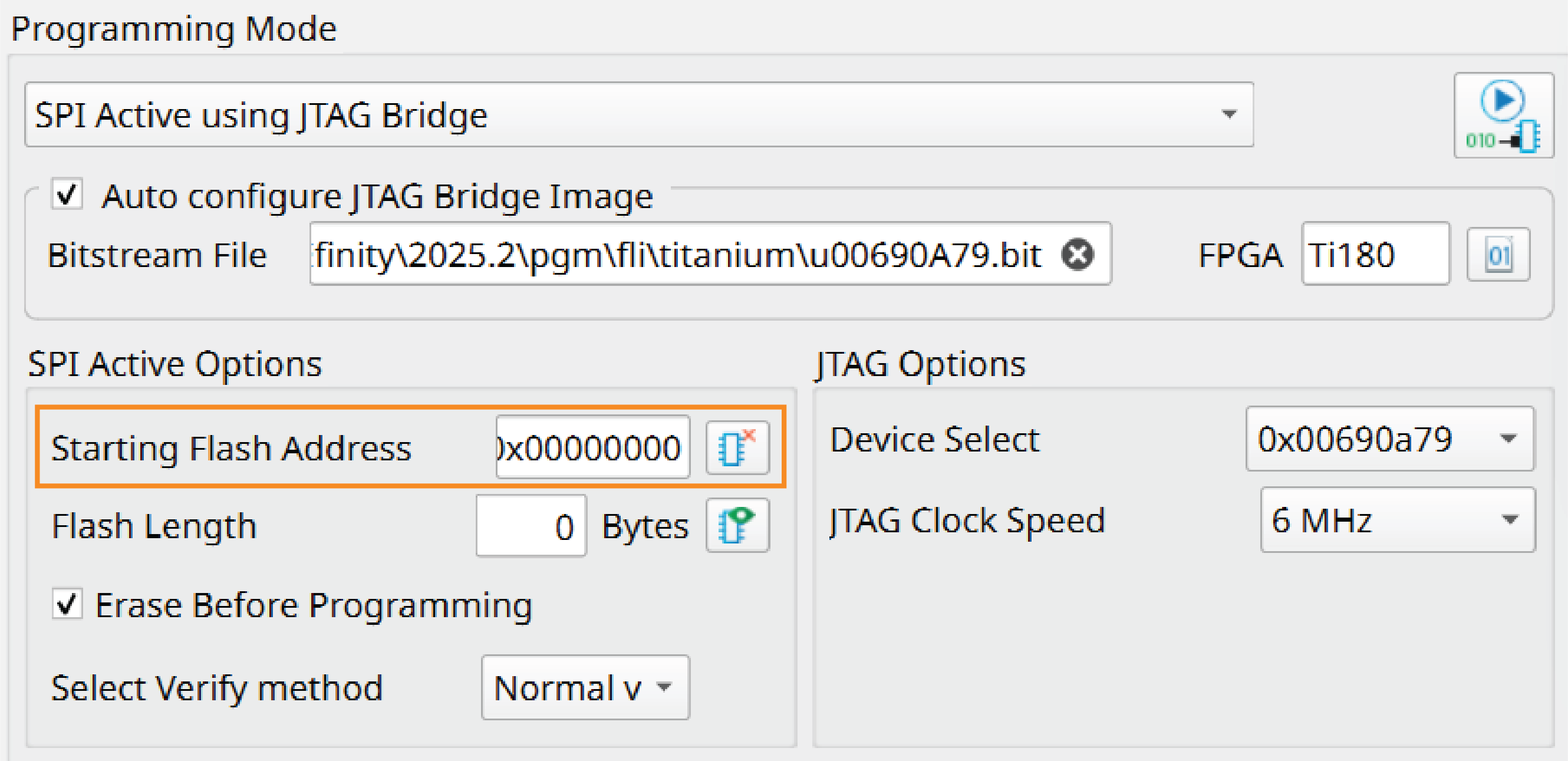
- Set the Starting Flash Address in the Efinity Programmer to match your application's target boot address in the flash memory, as shown in Figure 3. For example, setting to 0x380000 allows the default bootloader to fetch the application (the raw hex file) from that location and load it into DDR memory.
- Reset the FPGA or power cycle the board. The application loads automatically, provided the previous steps were followed correctly.